
how to sideload games on quest 3 comes down to one idea: you install apps that aren’t in the official Meta Quest Store by using developer tools and a USB (or wireless) connection.
If you’ve ever found a cool demo on itch.io, wanted experimental VR apps, or just needed a utility that Meta doesn’t list, sideloading is usually the path. It’s also the part where people get stuck on drivers, Developer Mode, or “device not detected” errors.
This guide stays practical: what you need, which method to pick, a clean step-by-step workflow, and the common gotchas that waste the most time. I’ll also flag the areas where you should slow down, like permissions, account settings, and file sources.
What “sideloading” means on Quest 3 (and what it doesn’t)
On Quest 3, sideloading typically means installing an Android APK onto the headset using ADB, the Android Debug Bridge. You’re not “modding” the headset firmware, and you’re not jailbreaking it in the old-school sense, you’re just using supported developer tooling.
That said, sideloaded apps don’t get the same store-level review process, and updates can be manual. Some titles will feel polished, others are very much “weekend prototype,” which is part of the appeal and part of the risk.
- What you can do: install APKs, run App Lab/experimental builds, use utilities like file managers, test your own apps.
- What you can’t reliably do: bypass paid content, break DRM, or expect every APK to work well with Quest’s VR runtime.
According to Meta, Developer Mode is intended for development and testing workflows, which is why the process routes through developer verification and debugging authorization.
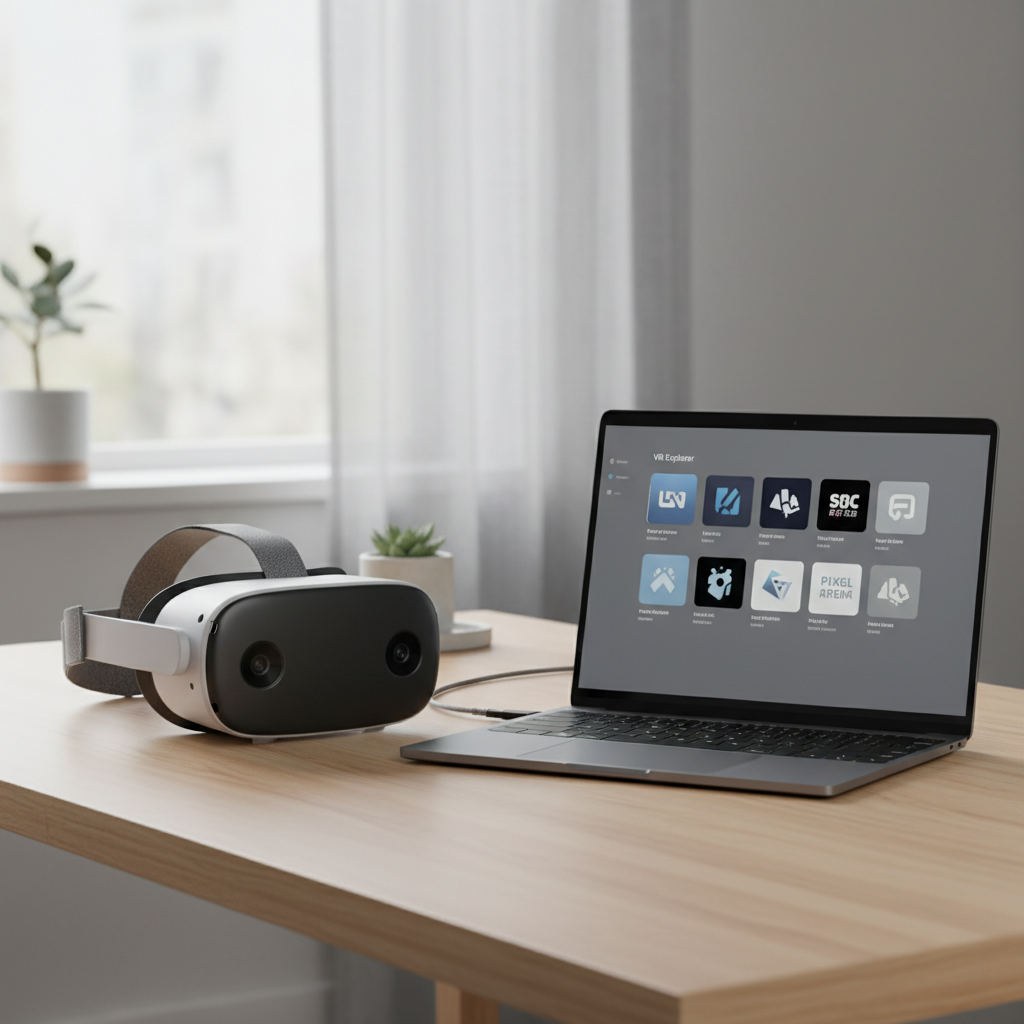
Before you start: what you need (and what people forget)
You can sideload from Windows, macOS, or Linux. The “I did everything right” failures usually come from one missing prerequisite.
- A Meta account with Developer Mode access (often requires creating a developer organization)
- Your Quest 3 updated to a reasonably current OS version
- A USB-C cable that supports data transfer (charge-only cables are a classic trap)
- A PC/Mac with permission to install drivers/tools
- A trusted APK source (developer site, reputable platform like SideQuest/itch.io)
If you’re on Windows, drivers matter more. On macOS, it’s usually simpler, but you can still hit permission prompts that block ADB.
Two common ways to sideload on Quest 3 (SideQuest vs. pure ADB)
There are two mainstream workflows, and choosing the right one saves time. If your goal is “install games and manage them easily,” SideQuest is usually the smoother option. If your goal is “I want the most direct control,” ADB is the backbone.
Quick comparison
| Method | Best for | Pros | Trade-offs |
|---|---|---|---|
| SideQuest (GUI) | Most players | Simple interface, app discovery, basic management | Still depends on ADB under the hood |
| ADB (command line) | Advanced users / devs | Direct installs, scripting, deeper debugging | More setup, easier to mistype steps |
Either way, how to sideload games on quest 3 still hinges on enabling Developer Mode and approving the debugging prompt inside the headset.
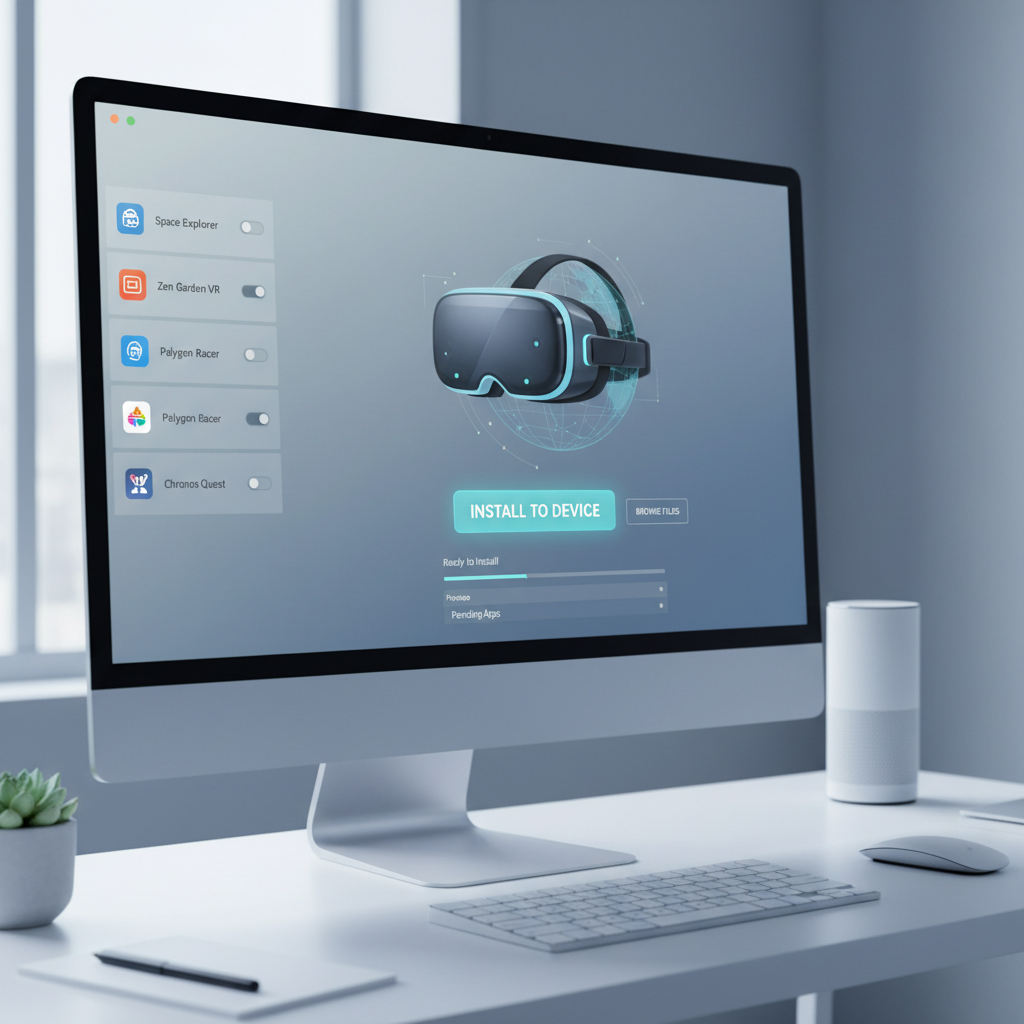
Step-by-step: SideQuest method (the practical default)
If you want a “do this, then this” path, this is the one most people stick with.
1) Enable Developer Mode
- Create (or sign into) a developer organization in your Meta developer settings.
- In the Meta Quest mobile app, find your headset settings and toggle Developer Mode on.
Reality check: some accounts get asked for extra verification steps, and that’s normal. Don’t skip them, it’s what unlocks the debugging permission flow.
2) Install SideQuest on your computer
- Download SideQuest from its official site.
- Install and launch it, then keep it open for the next steps.
Stick to the official download channel. When people get malware in this space, it’s usually from “mirror” sites offering repackaged installers.
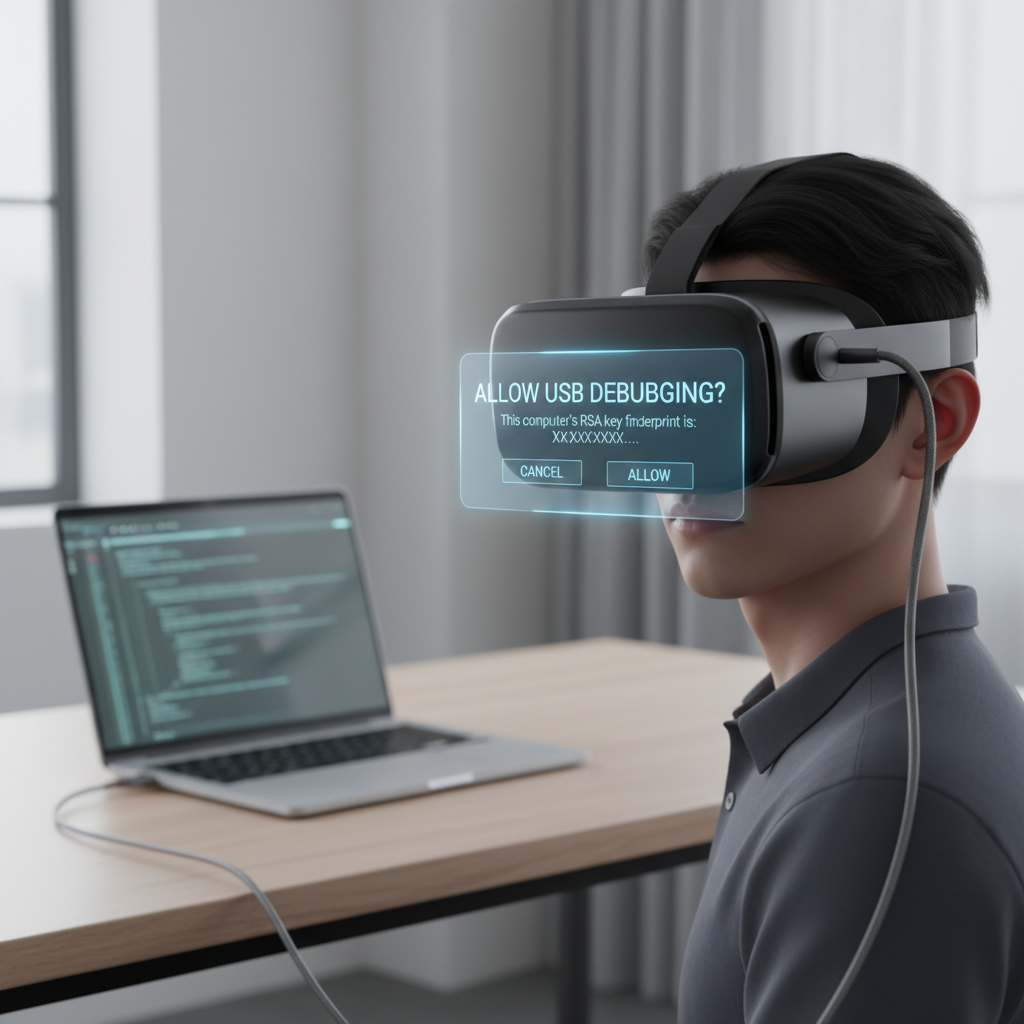
3) Connect Quest 3 and approve USB debugging
- Connect Quest 3 to your computer with a data-capable USB-C cable.
- Put the headset on and look for the USB debugging prompt.
- Choose “Always allow from this computer” if it’s your personal machine.
If you don’t see the prompt, don’t assume it’s broken yet. It can be a cable, a port, or a driver issue.
4) Install an APK
- In SideQuest, use the Install APK option and select your file.
- Wait for the install confirmation in SideQuest.
After install, sideloaded apps typically show up under an “Unknown Sources” section in your app library. The exact wording can change across OS updates, but it’s usually easy to spot once you know to look for it.
Self-check checklist: are you set up correctly?
When sideloading fails, it tends to fail in repeatable ways. Run this quick checklist before you start reinstalling everything.
- Developer Mode is on in the mobile app for the correct headset.
- USB debugging authorized inside the headset after connecting.
- Data cable confirmed (try another cable if unsure).
- SideQuest shows device connected (not just “charging”).
- APK architecture compatibility (many Quest apps target ARM64).
- Enough storage on the headset for the install and app data.
If three of these are “maybe,” that’s usually why how to sideload games on quest 3 feels harder than it should.
Troubleshooting: the issues that come up most
You don’t need an advanced diagnosis for most failures, you need the few fixes that actually move the needle.
Quest 3 not detected in SideQuest
- Swap to a different USB port, and avoid unpowered hubs.
- Try a known data cable (phone “fast charge” cables are hit-or-miss).
- Reconnect and check for the USB debugging prompt again.
- On Windows, install/update the ADB driver package recommended by SideQuest.
Install succeeds but the app doesn’t appear
- Look under the app library filter for Unknown Sources (or similar).
- Restart the headset; the library index sometimes lags.
- Confirm the APK is a Quest-compatible VR build, not a flat Android phone app.
App launches then crashes
- Check whether the app targets Quest 2/Quest 3 specifically; older builds can break.
- Reinstall with the latest APK from the developer.
- Disable experimental settings you recently changed, then test again.
Some crashes are simply app-side bugs. That’s not you doing something wrong, it’s the cost of running early builds.
Safety, legality, and account hygiene (don’t skip this)
Sideloading itself is usually legitimate when you install software you have rights to use, but the gray area shows up fast if you’re downloading pirated builds or modified packages. If a site feels sketchy, trust that instinct.
- Prefer known sources: official developer pages, SideQuest listings, reputable community hubs.
- Read permissions: if a simple game requests suspicious access, pause and investigate.
- Keep backups modest: for saves and settings, rely on each app’s export options when available.
- Watch for account flags: avoid “unlock everything” tools or anything that implies bypassing payments.
According to FTC guidance on mobile security, installing apps from unknown sources can increase exposure to malicious software, so being picky about APK origins is not paranoia, it’s basic hygiene.
Key takeaways and a simple “first sideload” plan
- Developer Mode + USB debugging approval are the two gates most people miss.
- SideQuest is the easiest on-ramp for non-developers, ADB is there when you need more control.
- Source quality matters, treat random APK sites as a risk.
If you want a clean first attempt, pick one reputable free app from a known platform, install it via SideQuest, confirm it appears in Unknown Sources, then only start experimenting with more obscure builds after that baseline works.
Once you get through it one time, how to sideload games on quest 3 usually becomes a five-minute routine, cable in, approve debugging, install, done. If you’re stuck at “device not detected,” focus on cable, prompts, and drivers before anything else.
If you need a more hands-off setup, consider starting with App Lab titles when available, it’s still outside the main store browsing experience in many cases, but it keeps installation and updates closer to the standard flow.
FAQ
Where do sideloaded games show up on Quest 3?
They typically appear under a library filter labeled Unknown Sources (or similar). If you don’t see it, restart the headset and re-check the filter menu.
Is sideloading on Quest 3 allowed?
In many cases, yes, because it uses developer tooling and installs apps you’re authorized to use. Problems usually start when people use pirated copies or tools that claim to bypass purchases.
Do I need SideQuest, or can I sideload with just ADB?
You can do it with ADB alone, SideQuest simply wraps the same underlying process in a friendlier interface. If you’re comfortable with command lines, ADB is fine.
Can I sideload games wirelessly?
Often yes, once you’ve set up ADB over Wi‑Fi, but it’s more sensitive to network quirks and firewall settings. For your first setup, USB is usually more predictable.
Why does my Quest 3 keep asking to allow USB debugging?
If you didn’t select “Always allow,” or if you changed computers/ports, the headset may ask again. Clearing developer authorizations can also reset that prompt.
What’s the biggest safety mistake when sideloading?
Grabbing APKs from random download sites. Even if an app works, it might include extra code you didn’t expect, so stick to reputable sources whenever possible.
Will sideloading void my warranty?
Policies can vary by region and by what exactly you install or change. If you’re concerned, review Meta’s current warranty terms and avoid anything that modifies system components.
If you’re trying to install a specific APK and you keep hitting the same error, it may be faster to sanity-check your cable, debugging prompt, and APK source in one go, rather than tweaking five settings at random. If you want, share the exact error message and what computer OS you’re on, and I can help narrow it down.