
how to use steam big picture mode properly comes down to three things: a clean controller setup, the right display/audio settings for your TV or monitor, and a couple of navigation habits that keep the interface from feeling clunky.
If you play on a couch setup, stream to a TV, or bounce between mouse-and-keyboard and controller, Big Picture Mode can feel either “console-smooth” or oddly frustrating. The difference usually isn’t your hardware, it’s the defaults.
This guide focuses on what actually helps in day-to-day use: where to change the settings that matter, how to prevent common controller weirdness, and how to set up a simple routine so you spend more time playing and less time troubleshooting.
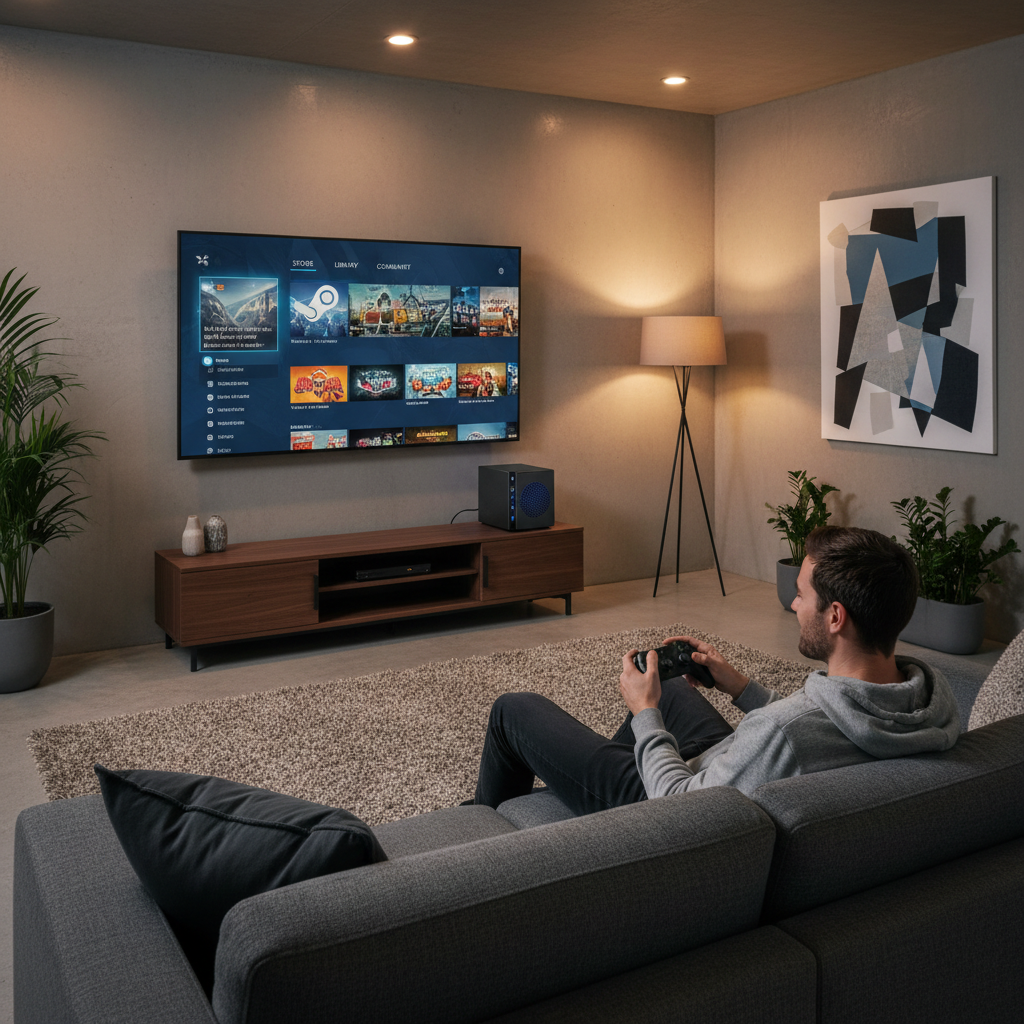
What Big Picture Mode is best at (and what it isn’t)
Big Picture Mode is Steam’s controller-first interface. It shines when you want a 10-foot UI for a TV, easy controller navigation, and quick access to Steam Input, Remote Play, and your library without squinting.
It’s less great if you expect it to replace Windows desktop control or if you constantly jump into non-Steam launchers. You can still make those work, but it helps to treat Big Picture as a launcher and settings hub rather than a full living-room operating system.
- Best use cases: couch gaming, family-friendly navigation, controller-centric play, Remote Play to another screen.
- Common friction points: controller mapping conflicts, wrong resolution or overscan, audio output switching, non-Steam game overlays.
Quick setup checklist before you tweak anything
Before diving into menus, check the basics. Most “Big Picture is broken” reports are a simple mismatch between controller, display, and Steam Input settings.
- Controller: connect via USB first if pairing is flaky, then switch to Bluetooth or dongle.
- TV/monitor: enable Game Mode if available, and confirm the input label isn’t forcing odd scaling.
- Steam updated: let Steam finish updates and restart once, especially after major client patches.
- One overlay at a time: if you run other overlays (GPU tools, capture software), disable them temporarily while testing.
According to Valve (Steam Support), controller recognition and Steam Input behavior can vary by device and game, so it’s worth validating the controller shows up correctly in Steam before blaming the game.
Controller setup that stays stable (Steam Input without the headaches)
If your goal is how to use steam big picture mode properly on a controller, this is the section that prevents 80% of annoyances: double inputs, wrong button prompts, or a controller that works in the menu but not in-game.
Start with the right Steam Input setting
In Big Picture, go to controller settings and look for Steam Input options. The tricky part is that some games do better with Steam Input enabled, while others behave better when you let the game handle the controller directly.
- When to keep Steam Input enabled: older games, games without native controller support, or when you want custom layouts.
- When to try disabling per-game: you see doubled movement, repeated button presses, or mismatched prompts.
Use per-game layouts, not one layout for everything
One global layout sounds convenient, but it’s usually why things feel inconsistent. Use a per-game layout so a racing game and a shooter don’t fight over the same triggers.
- Open the game in Big Picture → controller layout → pick a community layout or start from the official template.
- Save it as a personal layout with a clear name like “No gyro, Xbox prompts”.
Fix the “controller works in menu, not in game” problem
This often happens when another device becomes Player 1. If you have a racing wheel, flight stick, or a second controller connected, Steam and the game might pick the wrong input.
- Unplug extra controllers while testing.
- Reorder controllers in Steam if that option appears for your device.
- Try launching the game once from Big Picture after a full Steam restart.
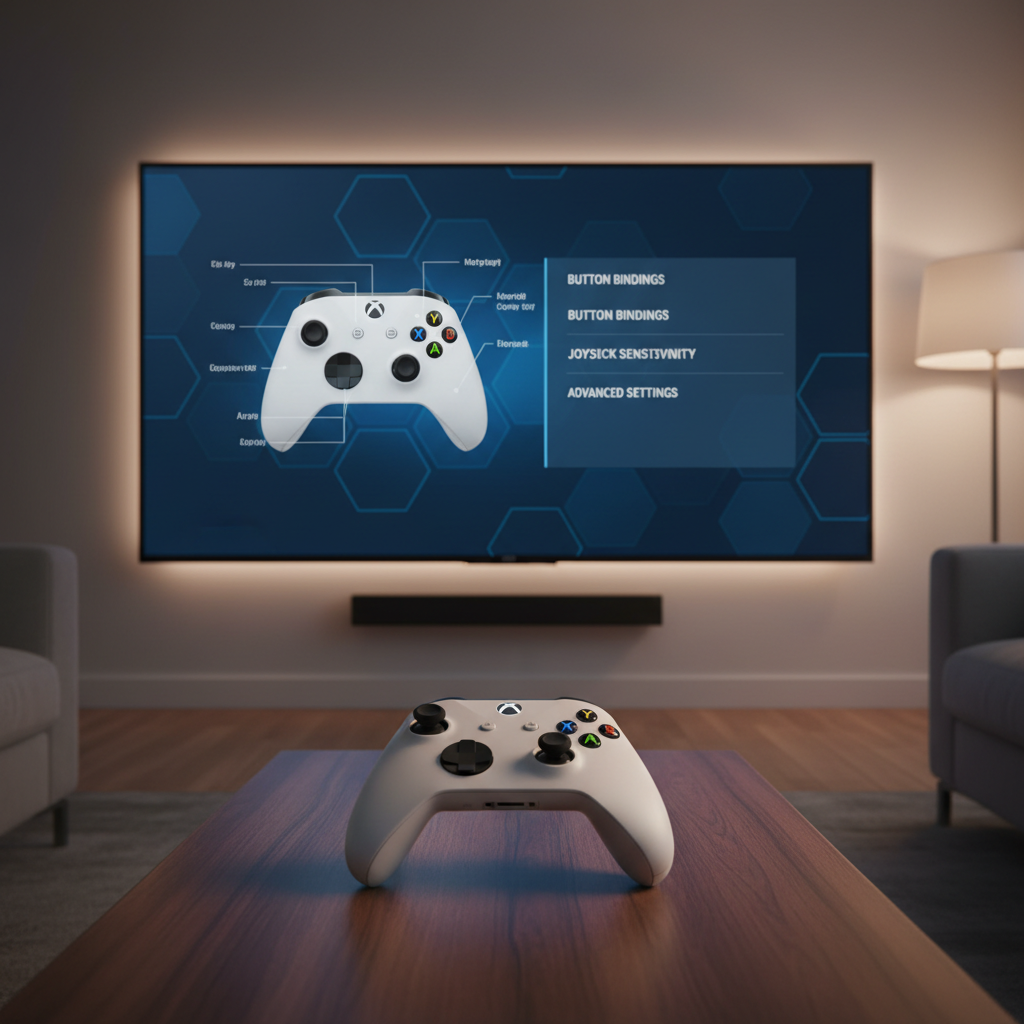
TV-friendly display and audio settings that prevent the “why does this look wrong” moment
Big Picture can look fuzzy or cropped on TVs, even when your PC looks fine on a monitor. Usually it’s scaling, resolution, or overscan.
Dial in resolution, scaling, and overscan
- Use your TV’s native resolution (often 4K or 1080p) and avoid odd refresh combos while testing.
- Turn off overscan in the TV settings if edges get cut off. Different brands call it different things: “Just Scan,” “Screen Fit,” or “1:1.”
- Prefer GPU scaling consistency if your TV keeps changing aspect ratios between apps.
Make audio output switching predictable
If you alternate between headset, TV speakers, and an AV receiver, Windows can quietly switch default outputs. Big Picture will follow the system output, which feels random if you don’t check it.
- Set the correct Windows default playback device before launching a game.
- If you use HDMI audio through a receiver, confirm the receiver input matches the HDMI port your PC uses.
According to Microsoft Support, Windows chooses a default audio output device based on what’s connected and active, so when a TV or headset wakes up, the default can change without much warning.
Navigation tips and shortcuts that make Big Picture feel faster
A lot of people give up because the interface feels slow. In practice, it’s usually because they’re doing everything the long way.
- Use the Steam button / guide button to open the overlay quickly while in-game.
- Pin the things you actually use (library filters, installed games, Remote Play) rather than scrolling the full library.
- Turn on “Remember my last tab” if available, so you land where you left off.
- Prefer search for large libraries; typing a few letters is faster than browsing cover art forever.
If you share the PC with family or roommates, consider a simpler library view and fewer categories. Big Picture becomes much more “console-like” when there are fewer choices per screen.
Practical scenarios: set it up once, then reuse it
Here are common real setups and what tends to work. This is where how to use steam big picture mode properly turns into a repeatable routine.
Scenario A: Couch PC connected to a TV (single room)
- Set TV to Game Mode, disable overscan, confirm native resolution.
- Connect controller, verify Steam Input behavior in one test game.
- Choose a consistent audio output (TV speakers or receiver), then leave it.
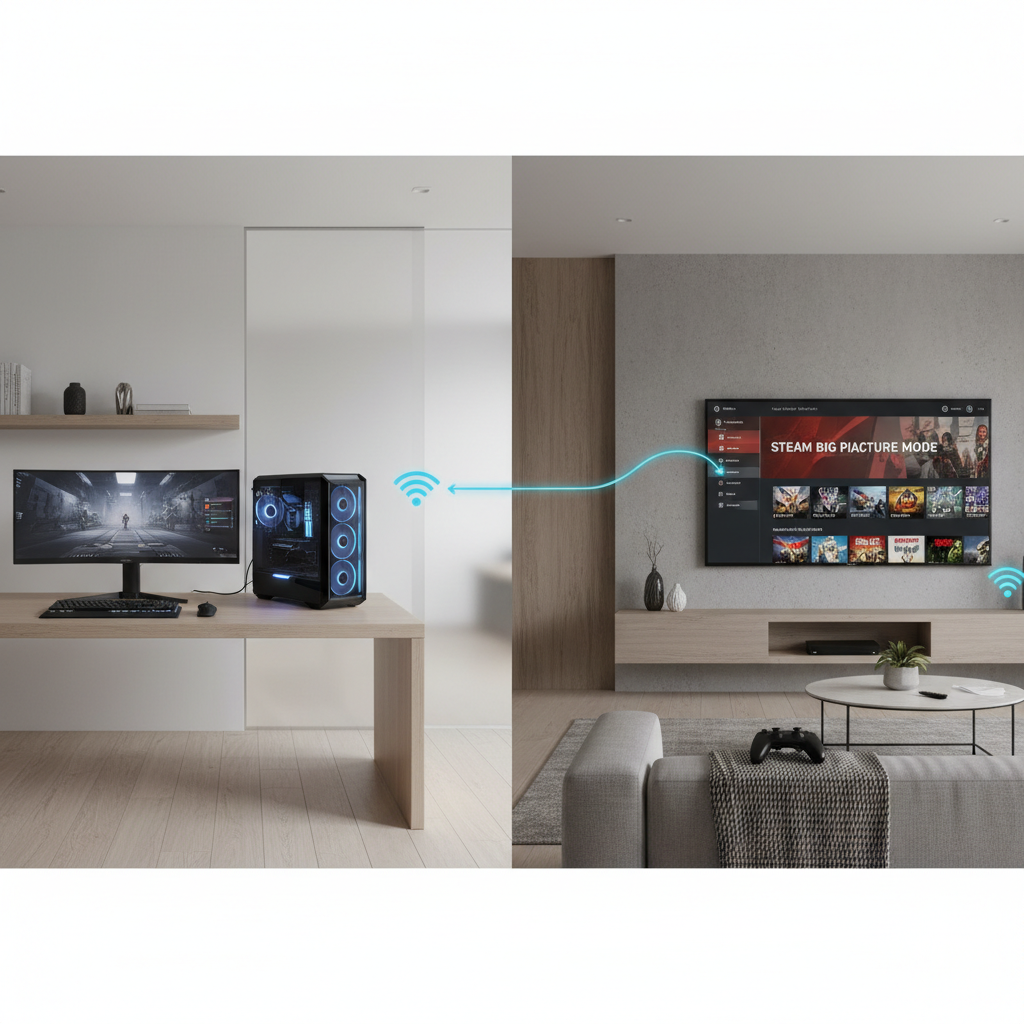
Scenario B: PC in office, streaming to a TV (Remote Play)
- Use Ethernet where possible; Wi-Fi can work, but it’s more sensitive to interference.
- Lower streaming resolution or bitrate if you see stutter or input delay.
- Keep one controller paired to the client device where you play.
Scenario C: Switching between mouse/keyboard and controller
- Let Big Picture handle navigation, but don’t fight it: use the controller in menus, mouse for text-heavy tasks.
- If a game flips prompts constantly, try locking the input method in that game’s settings when available.
Troubleshooting: the common issues and what to try first
When Big Picture feels “off,” resist the urge to change ten settings at once. Make one change, retest, then move on.
| Problem | Likely cause | What to try |
|---|---|---|
| Buttons act twice (double input) | Steam Input + native input both active | Disable Steam Input per-game, or switch to an official template |
| Edges cut off on TV | TV overscan / scaling | Turn off overscan (“Just Scan” / “Screen Fit”), confirm native resolution |
| Controller works in Steam, not in-game | Wrong device as Player 1 | Unplug extra devices, reconnect controller, relaunch Steam |
| Audio comes from the wrong device | Windows default output changed | Set Windows default audio before launching the game |
| Interface feels laggy on TV | TV processing / high latency mode | Enable Game Mode, reduce motion smoothing and extra processing |
Key takeaways (so you don’t overthink it)
- Controller stability beats fancy layouts: get one game working perfectly, then copy that approach.
- TV settings matter more than people expect: overscan and Game Mode fix a lot of “fuzzy/cropped” complaints.
- Per-game Steam Input toggles are normal: it’s not you, some titles just behave differently.
- Change one thing at a time: it saves you from circular troubleshooting.
Conclusion: a simple routine that keeps Big Picture enjoyable
If you want how to use steam big picture mode properly to feel effortless, treat it like a living-room front end: confirm the TV looks correct, pick a stable controller approach, then use per-game adjustments only when something clearly breaks.
Action-wise, do two things today: pick one “benchmark” game to validate controller and display settings, then save a clean controller layout you can reuse as a starting point. Once that baseline feels solid, Big Picture stops being a project and starts feeling like the easy way to play.
FAQ
- How do I use Steam Big Picture Mode properly on a TV without the screen getting cut off?
Check your TV overscan setting first. If the UI edges disappear, look for options like Screen Fit, Just Scan, or 1:1 pixel mapping, then confirm your PC outputs the TV’s native resolution. - Why does my controller work in Big Picture but not inside a specific game?
Most of the time, the game is reading a different input device as Player 1 or Steam Input conflicts with the game’s native controller handling. Unplug extra devices and test toggling Steam Input per-game. - Should Steam Input be enabled for every game?
Not always. Many games work great with it enabled, especially older titles or those needing remaps, but some newer games behave better with Steam Input disabled so they can manage native input directly. - How can I stop button prompts from switching between keyboard and controller?
This usually happens when the game detects tiny mouse movement or background inputs. If the game offers an input lock, use it; otherwise, keep the controller as the primary device and avoid touching the mouse during gameplay. - Is Big Picture Mode good for Remote Play streaming?
Yes, in many setups it’s a comfortable way to browse and launch games from the couch. If latency or stutter shows up, reduce stream quality and prefer Ethernet where possible. - Why is Big Picture Mode laggy even though my PC is fast?
On TVs, post-processing features can add delay and make motion feel sluggish. Try enabling Game Mode and disabling motion smoothing, then retest navigation. - What’s the safest first step if everything feels messed up after changing settings?
Reset the controller layout for the problem game to an official/default template, restart Steam, then make one change at a time. It’s slower for five minutes, faster for the next five weeks.
If you’re still bouncing between controller glitches, weird TV scaling, and per-game quirks, it might be worth writing down your baseline settings and building a small “living room” profile you can return to, because that’s usually the difference between Big Picture feeling smooth and feeling like a weekend project.