
how to disable startup videos in pc games usually comes down to one of three things: an in-game setting, a launch option, or a video file the game plays before the main menu.
If you play on PC long enough, you’ve seen the same publisher logo loop for 20 seconds, or a cinematic that’s cool once and then becomes pure friction. The good news is that many PC games are built in ways that make this fix straightforward, if you know where to look.
This guide focuses on practical, reversible methods that work across common launchers and engines. I’ll also call out the cases where disabling intro videos can break startup, because that still happens with certain titles.
Why startup videos happen (and why they can be annoying)
Startup videos are not there just to waste time. Many studios use them for legal and technical reasons, and that explains why some games let you skip them while others fight you.
- Publisher and middleware credits: engine logos, audio tech, anti-cheat, and licensed tools often show at boot.
- Loading cover: the intro can mask shader compilation or first-load caching on slower drives.
- Engine pipeline: some engines play videos before input initializes, so “Press any key” literally can’t work yet.
- Anti-tamper behavior: a few titles treat changes to startup assets as suspicious, which is why you want reversible steps.
According to Microsoft, Windows includes features like Game Mode and Graphics settings intended to improve gaming performance, but those don’t directly control a game’s own intro playback, you still need game-specific fixes.
Quick self-check: which method is most likely for your game?
Before you rename files or edit configs, spend 60 seconds identifying what you’re dealing with. It prevents the classic “I changed five things and now I don’t know what worked” problem.
- Can you skip with Esc/Space/Enter? If yes, you may only need an input tweak or a single setting.
- Are you launching via Steam/Epic/GOG? If yes, launch options are often the cleanest route.
- Do you see .mp4/.bk2/.usm files in the install folder? If yes, a safe rename can work.
- Does the game have an “Accessibility” or “Startup” setting? Some newer titles hide “Skip splash screens” there.
- Does it use a known engine? Unreal and Unity games frequently store flags in config files.
The safest route: check in-game options and launcher settings first
Start here because it’s least likely to cause crashes, missing audio, or a black screen on boot.
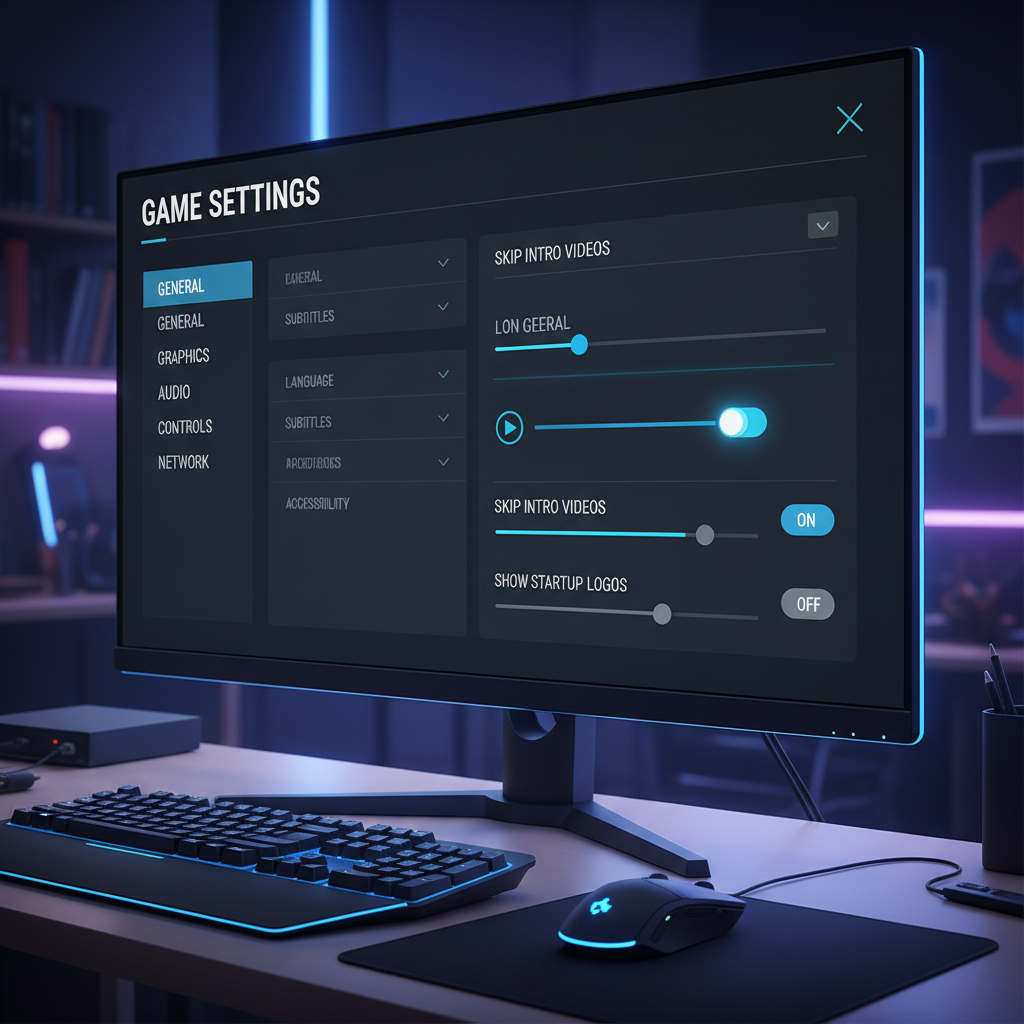
In-game settings to look for
- “Skip intro,” “Skip splash screens,” “Show startup videos”
- “Show logos,” “Cinematics,” “Start in main menu”
- Accessibility toggles that reduce motion or flashing elements
Some games only expose this toggle after you’ve launched once, created a config file, or finished the first-run setup.
Launcher-side options (Steam/Epic/GOG)
- Steam: right-click game → Properties → check “Launch Options” field and the “General” tab notes.
- Epic: options are more limited, but some games accept command-line arguments via “Additional Command Line Arguments” (when available).
- GOG Galaxy: Manage Installation → Configure → sometimes includes custom parameters.
If you find a “skip movies” checkbox in a launcher, use it. It’s rare, but when it exists it’s usually the most stable fix.
Use launch options (common flags that often work)
Launch options can disable splash screens without touching files. This is often the best answer when people search how to disable startup videos in pc games for Steam titles.
That said, flags are engine and game dependent. A flag that works in one Unreal Engine game can be ignored in another.
| Where you set it | What to try | What it typically affects |
|---|---|---|
| Steam Launch Options | -nointro | Skips intro movies in some games |
| Steam Launch Options | -nosplash | Removes splash screens in some engines |
| Steam Launch Options | -skipintro | Skips first videos when supported |
| Game shortcut Target | (add a flag at the end) | Same idea as Steam, just without a launcher |
Key point: if the game uses an anti-cheat or strict launcher, it may strip flags. In that case, config edits or supported settings work better.
Rename or replace the startup video files (works, but do it carefully)
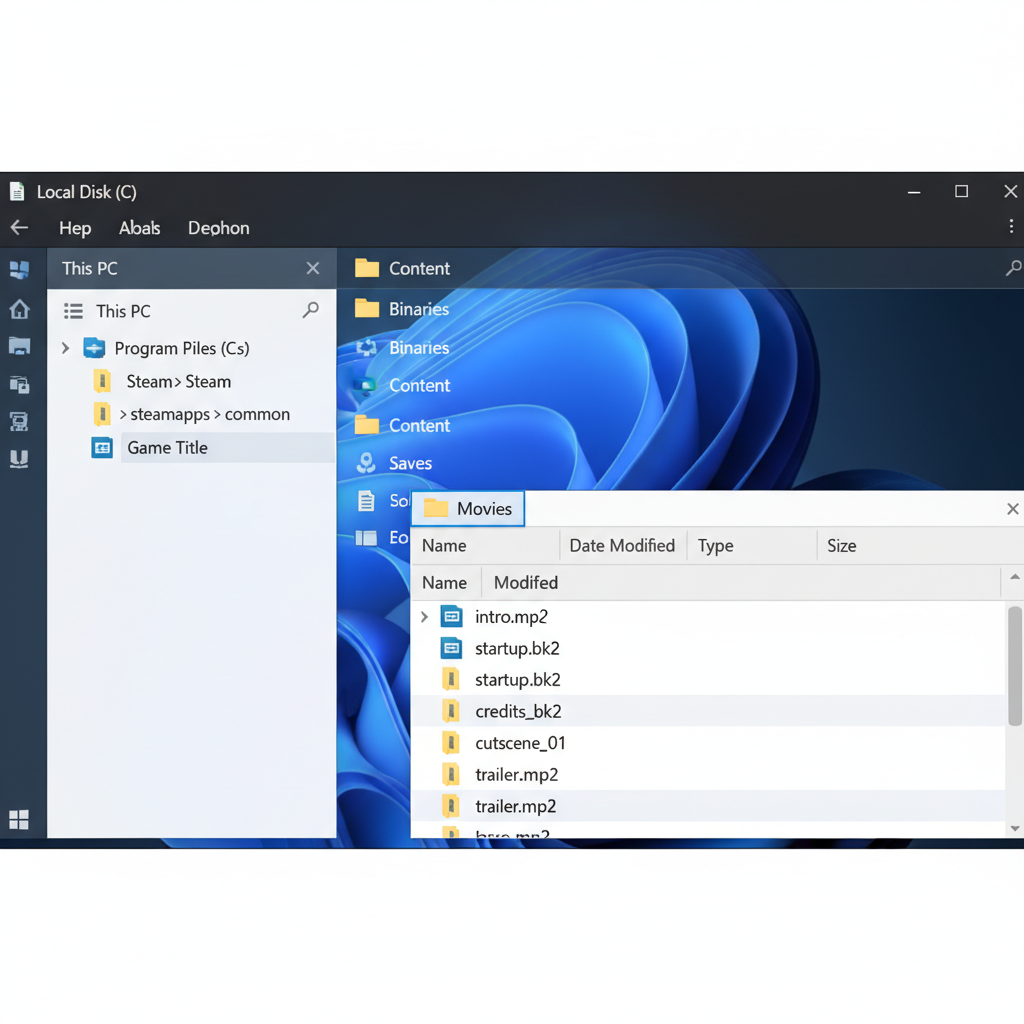
If launch options don’t work, file-based methods are next. Many games keep intro clips in a Movies, Video, or Bink folder. Typical formats include .mp4 and .bk2 (Bink).
A cautious step-by-step approach
- Back up the original files: copy the whole Movies folder somewhere safe.
- Rename, don’t delete: change intro.bk2 → intro.bk2.bak so you can revert fast.
- Change one file at a time: launch, confirm behavior, then proceed.
- Verify game files if needed: Steam “Verify integrity” can restore anything you break.
Some games crash if a referenced video is missing. When that happens, replacing the file with a tiny blank video of the same name sometimes helps, but it’s not universal and can create new issues after updates.
Edit config files for Unreal/Unity and other common PC builds
Config edits are powerful, but they also create the “game updated, my tweak vanished” cycle. Still, for many players looking up how to disable startup videos in pc games, this is the method that finally sticks.
Where configs often live
- %LOCALAPPDATA% or %APPDATA% (per-user settings)
- Documents\My Games (common for Unreal-based titles)
- The game install directory (less common on modern Windows, but it happens)
What you’re looking for
- Keys mentioning intro, startup, movies, splash, logos
- Boolean values like true/false or 0/1
Practical tip: open config files with a plain text editor, make a copy first, then change a single line and test. If you can’t find any relevant keys, the game may hard-code intro playback or store settings in a binary file.
According to Epic Games, Unreal Engine supports configuration files for project and user settings, which is why Unreal-based games often expose behavior through .ini files, though each shipped game decides what it actually reads at runtime.
Troubleshooting: when disabling intros causes black screens or crashes
When the game fails right after you “remove the logos,” it usually means the startup sequence expects that asset to exist or uses the video moment to initialize something else.
- Symptom: black screen then exit → Try: restore the renamed file, then use launch options instead.
- Symptom: audio continues, no video → Try: update GPU drivers, then undo file changes and test again.
- Symptom: anti-cheat warning → Try: revert to original files, verify game files, avoid mod-style replacements.
- Symptom: intros return after patch → Try: reapply the change, or move to a launcher flag if available.
Key takeaway: if a game is competitive, uses anti-cheat, or receives frequent updates, prefer settings and flags over file edits.
Practical “do this now” playbook (fast, reversible)
If you want a simple workflow that keeps risk low, this sequence tends to work without turning into a weekend project.
- Step 1: Look for an in-game “skip intro” setting, restart once to confirm.
- Step 2: Add a single launch flag like -nointro, test, then remove it if nothing changes.
- Step 3: Locate Movies/Video folder, rename only the first logo clip, test.
- Step 4: If the game crashes, revert immediately and verify files via the launcher.
Most players end up solving how to disable startup videos in pc games somewhere between Step 2 and Step 3, and that’s a decent stopping point unless you enjoy tinkering.
Conclusion
Disabling startup videos is usually possible on PC, but the “right” method depends on how the game boots. Settings and launch options stay cleaner, file renames work when the game keeps videos as separate assets, and config edits help when everything else fails.
If you want one action to take today, try a single launcher flag, then test. If that doesn’t move the needle, switch to a cautious rename with a backup, and keep the rollback path easy.
FAQ
Why do some PC games ignore -nointro or -nosplash?
Many games simply don’t read those flags, or they rely on a launcher that strips parameters. In those cases, only an in-game toggle or an asset/config change will matter.
Is it safe to delete the intro video files?
Deleting works sometimes, but renaming is safer because a surprising number of titles crash when an expected video is missing. Renaming also makes it easy to revert after an update.
Will disabling startup videos improve FPS in-game?
Usually not. It mostly reduces time-to-menu and annoyance. If the intro was masking shader compilation, skipping it might shift that wait to a later loading screen.
Do Steam “Verify integrity of game files” restore my renamed videos?
Often yes, especially if the files differ from what Steam expects. If you only renamed files, Steam may redownload them or recreate them depending on how the manifest is set up.
Where are startup videos stored in most PC games?
Common folders include Movies, Video, Media, or Bink, either inside the install directory or under a game-specific content folder. The exact layout varies by engine and publisher.
Can disabling intros trigger anti-cheat bans?
It’s uncommon, but messing with game files can raise flags in some ecosystems. If the title is online and protected, stick to supported settings and launch options, and consider checking the game’s official support channels if you’re unsure.
My game shows a black screen after I removed videos, what should I do?
Restore the original files first, then test. If it boots, use a launch option or in-game setting instead. If it still fails, a clean reinstall or verifying files is the fastest way back to a known-good state.
If you’re trying to cut boot time across multiple titles and you’d rather not dig through folders every patch day, consider keeping a small checklist for each game: what flag worked, which file you renamed, and how to revert, it saves more time than you’d think.