
how to enable game mode on windows 11 is a quick win when your game stutters, frames dip for no obvious reason, or Windows feels like it prioritizes “everything else” while you play.
Game Mode is supposed to help by nudging the system to favor your game, limiting some background activity and reducing interruptions, but it doesn’t magically fix every performance problem. Still, it’s one of the first settings worth checking because it’s built in, free, and takes under a minute.
This guide keeps it practical: where the toggle lives, how to confirm it actually applies, what related settings matter more than people think, and when you should stop tweaking Windows and look at drivers, thermals, or your game settings instead.
What Game Mode does on Windows 11 (and what it doesn’t)
Game Mode is a Windows feature designed to prioritize gaming workloads. In many everyday setups, that translates to fewer background tasks stealing attention, fewer surprise interruptions, and slightly steadier performance.
According to Microsoft, Game Mode helps achieve more consistent frame rates by prioritizing game processes and limiting background activity while you’re playing. That’s the intent, but results vary by hardware, drivers, and the specific game engine.
- What it may help: reduce background update pressure, keep CPU/GPU focus on the game, cut down on some capture/notification distractions.
- What it won’t fix: unstable drivers, overheating, low RAM/VRAM, a slow SSD/HDD, poor in-game settings, or server-side lag.
If you’re expecting a “double your FPS” switch, you’ll be disappointed. If you want fewer hiccups during matches, it’s worth enabling and pairing with a couple related settings.
How to enable Game Mode on Windows 11 (step-by-step)
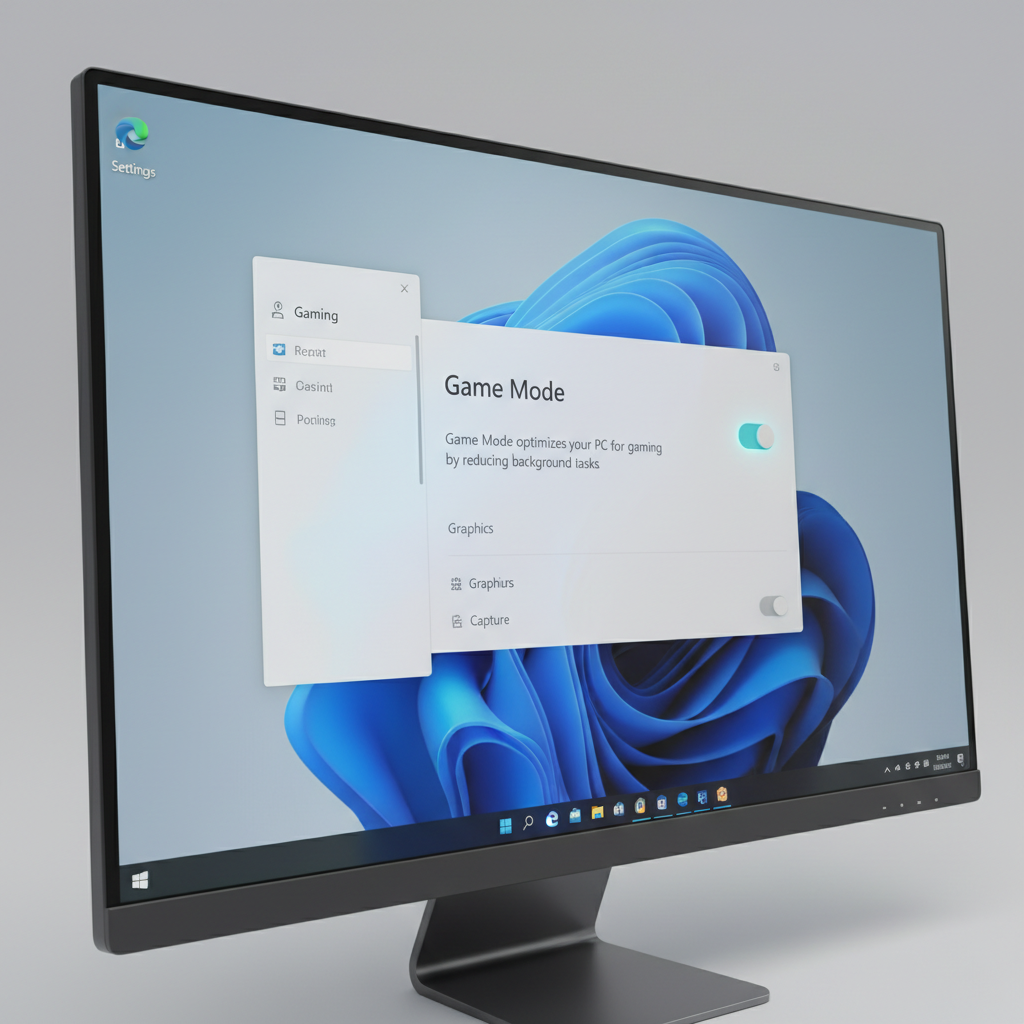
If your goal is simply how to enable game mode on windows 11, this is the shortest path. You don’t need admin tools or third-party apps.
Turn it on in Settings
- Open Settings
- Go to Gaming
- Select Game Mode
- Toggle Game Mode to On
That’s it. Windows applies it system-wide, so you don’t need to enable it per game.
If you can’t find it
- Use the Settings search bar and type Game Mode
- Make sure Windows 11 is updated (some managed devices can hide gaming features)
- If you’re on a work or school PC, policies may restrict gaming settings
Quick self-check: will Game Mode likely help you?
Not everyone benefits the same way. This quick checklist helps you decide whether you should spend time tuning Windows, or jump straight to drivers and in-game settings.
- You’ll likely notice improvement if you multitask heavily (browser tabs, Discord streams, downloads) while gaming.
- You might see little change if your PC is already CPU/GPU bound and running clean, with few background apps.
- You may see worse behavior in rare cases if overlays, capture tools, or a specific game has compatibility quirks.
One practical test: enable it, play the same scene or match type for 10–15 minutes, then compare consistency (stutters, frame-time spikes), not just average FPS.
Related Windows 11 settings that matter (often more than the toggle)
People search how to enable game mode on windows 11, flip the switch, and stop there. Realistically, these adjacent settings have a bigger day-to-day impact on “smoothness.”
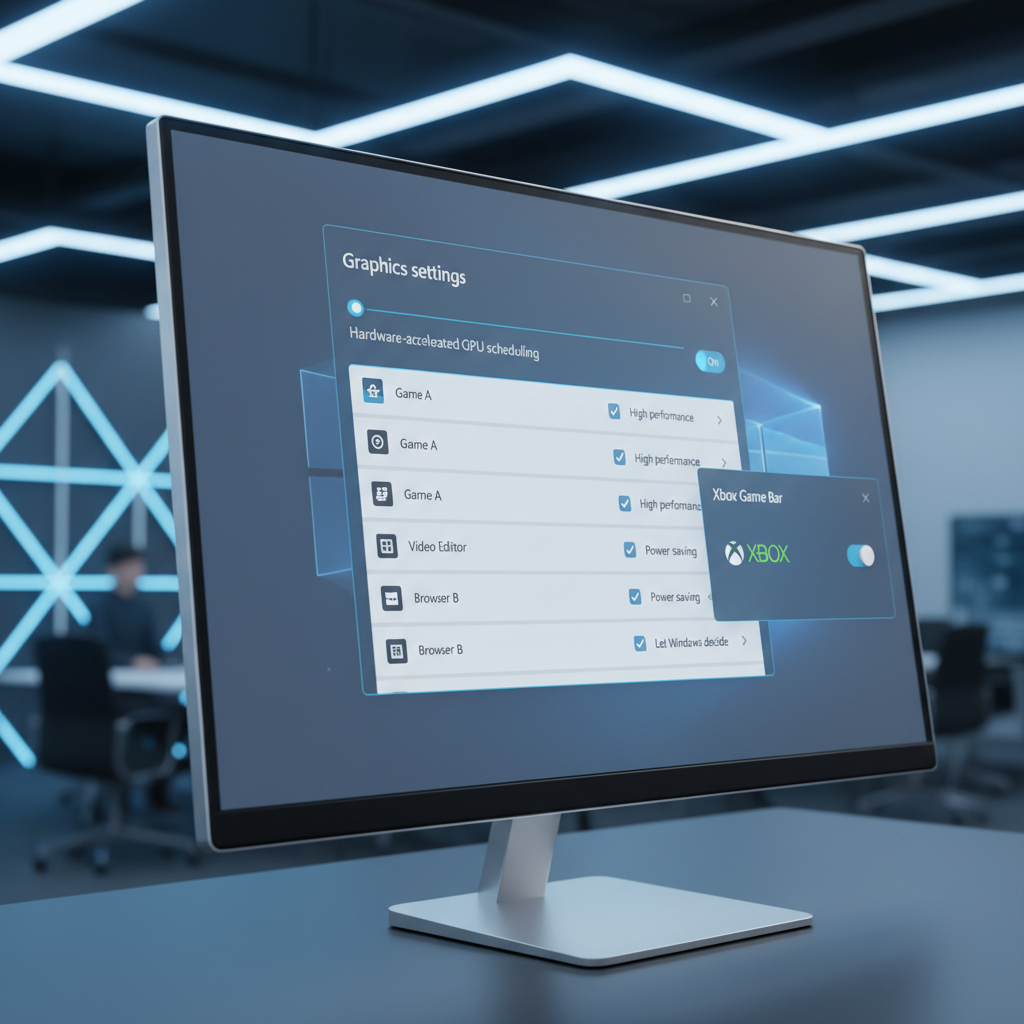
Graphics settings: per-game GPU preference
On laptops or PCs with both integrated and dedicated graphics, Windows can pick the “wrong” GPU for a game. Setting the right preference can be more meaningful than Game Mode.
- Settings → System → Display → Graphics
- Select or add your game → Options → choose High performance (typically the dedicated GPU)
Hardware-accelerated GPU scheduling (HAGS)
HAGS can help in some hardware/driver combinations and do little in others. If you’re troubleshooting micro-stutter, it’s a reasonable A/B test.
- Settings → System → Display → Graphics → Default graphics settings
- Toggle Hardware-accelerated GPU scheduling (test On vs Off)
Don’t change five things at once. Switch one setting, test, then decide.
Xbox Game Bar and background capture
If you never use Xbox Game Bar, disabling some capture features can reduce background overhead. On the other hand, some players rely on it for clips or party chat, so this is preference-driven.
- Settings → Gaming → Xbox Game Bar (toggle based on your use)
- Settings → Gaming → Captures (consider limiting background recording)
Practical tuning plan (5–10 minutes, low risk)
If you want a straightforward “do this, then test” routine, use the plan below. It’s designed to avoid the common trap of changing everything and not knowing what helped.
- Step 1: Enable Game Mode in Windows Settings.
- Step 2: Reboot (not strictly required, but helps ensure services reset cleanly).
- Step 3: Set the game to High performance in Windows Graphics settings (especially on laptops).
- Step 4: Close obvious background hogs: browser video tabs, launchers updating, file sync tools during matches.
- Step 5: Run one repeatable test: same map, same training range, or built-in benchmark.
Key takeaway: evaluate frame-time consistency and input feel, not just the FPS number in a corner overlay.
Troubleshooting: if Game Mode is on but performance still feels off
At this point, you already know how to enable game mode on windows 11, so the next question is why the PC still doesn’t feel stable. These are the usual culprits.
Common causes outside Game Mode
- Driver issues: GPU driver bugs or corrupted installs can cause stutter.
- Thermal throttling: laptops in particular may downclock under heat, creating periodic dips.
- RAM pressure: if you’re near full memory usage, Windows starts swapping to disk.
- Storage bottlenecks: texture streaming on slow drives can hitch.
- Overlay conflicts: Discord, Steam, GeForce Experience, and other overlays can stack up.
Fast checks you can do without going deep
- Open Task Manager while the game runs, check if CPU, GPU, RAM, or disk hits near 100%.
- Update GPU drivers from NVIDIA/AMD/Intel, then retest the same scene.
- Temporarily disable extra overlays, keep only what you truly use.
- Verify the game uses the correct display mode (exclusive fullscreen vs borderless can matter by title).
Game Mode and other options: quick comparison table
When people ask for “Windows 11 gaming optimization,” they’re often mixing several features together. This table helps separate what each switch is for.
| Feature | Where to find it | What it’s for | When to use it |
|---|---|---|---|
| Game Mode | Settings → Gaming → Game Mode | Prioritizes game workload, reduces some background activity | Most PCs; especially if you multitask while gaming |
| High performance GPU preference | Settings → System → Display → Graphics | Forces a specific GPU for a game | Laptops or dual-GPU systems |
| HAGS | Graphics → Default graphics settings | Changes how GPU scheduling is handled | Try if micro-stutter persists; test both ways |
| Xbox Game Bar / Captures | Settings → Gaming | Overlay, clips, background recording | Keep if you clip gameplay; reduce if you want less overhead |
Common mistakes and when to get extra help
A lot of “Game Mode doesn’t work” complaints come from reasonable expectations aimed at the wrong lever. A few pitfalls show up repeatedly.
- Changing too many settings at once, then guessing what helped.
- Confusing internet lag with PC performance; packet loss feels like stutter, but Game Mode can’t fix routing.
- Ignoring power mode on laptops; if you’re on battery or a quiet profile, performance limits can kick in.
- Using outdated chipset drivers; less flashy than GPU drivers, but can matter for stability.
If you’re seeing crashes, black screens, or hard reboots, stop treating it like a “settings” issue. At that point, checking Event Viewer logs, doing a clean GPU driver install, or asking a qualified technician to look at hardware stability is usually the safer next step.
Conclusion: a simple way to keep Windows 11 gaming smoother
Enabling Game Mode is worth doing because it’s low effort and, in many setups, helps keep gameplay a bit more consistent. Pair it with the right GPU preference, keep background capture in check, then test in a repeatable way so you’re not chasing placebo.
If you want one action item: enable Game Mode today, then spend five minutes confirming your game runs on the high-performance GPU. That combo solves more “why does it feel choppy?” cases than people expect.
FAQ
Where is Game Mode in Windows 11 Settings?
You’ll usually find it under Settings → Gaming → Game Mode. If it’s missing, use the Settings search bar for “Game Mode,” or confirm you’re on Windows 11 with current updates.
Does Game Mode increase FPS on Windows 11?
Sometimes it can, but the more common benefit is steadier performance and fewer interruptions. If your system is already maxed out, average FPS may not move much.
Should I keep Game Mode on all the time?
For most people, yes. It’s designed to be safe as a default. If you notice strange behavior in a specific game, you can disable it and retest.
How do I know Game Mode is actually working?
There isn’t a big “active” badge during play. The practical way is A/B testing: same game scene, same settings, compare stutter and frame-time consistency with the toggle on versus off.
Is Game Mode the same as Xbox Game Bar?
No. Game Mode is a system behavior preference, while Xbox Game Bar is an overlay and capture toolset. You can use Game Mode without using Game Bar.
What if Game Mode makes performance worse?
It’s uncommon, but it can happen depending on drivers and overlays. Turn it off, reboot, then test again. If the issue persists, focus on GPU drivers, thermals, and per-game graphics settings.
Do I need Game Mode if I have a high-end gaming PC?
High-end systems often feel fine either way, but Game Mode can still help keep background tasks from being disruptive. It’s usually a harmless toggle to leave on.
If you’re trying to troubleshoot stutter beyond how to enable game mode on windows 11, it can help to list your GPU model, laptop/desktop, and what you run in the background, then work through one change at a time instead of chasing a dozen “optimization” tips at once.