
how to fix game not recognizing controller usually comes down to one of three things: the connection path (USB or Bluetooth), the system driver layer, or the game’s own input settings.
It’s frustrating because the controller can look “connected” in Windows, Steam, or your console menu, yet the game still ignores it, or only reads some buttons. The good news is you can usually narrow the cause in 10–15 minutes if you test in the right order.
Below is a practical flow that starts with quick checks, then moves into Steam/Epic/Xbox app settings, and finally the deeper driver and Windows input layers. I’ll also call out the traps that waste the most time, like fighting Steam Input when you actually need it, or leaving “Controller Support” disabled in-game.
Quick diagnosis: confirm the controller works outside the game
Before you change anything, you want one clean answer: does your controller register inputs at the OS level? If it doesn’t, the game can’t fix it for you.
- On Windows: open Game Controllers (search “Set up USB game controllers”), select your device, choose Properties, and press buttons to see if they light up.
- On Steam: Steam > Settings > Controller, see if Steam detects it and responds to inputs.
- On macOS: System Settings > Bluetooth (for wireless), and test inside a known controller-friendly app if possible.
If nothing registers here, focus on cable, pairing, battery, port, and driver problems. If it registers fine here but not in the game, jump to the launcher/game sections because you’re likely dealing with input mapping or an override.
The most common causes (and what they look like)
When people search how to fix game not recognizing controller, they’re often hitting one of these patterns. The symptoms matter because they point to different fixes.
| Symptom | Likely cause | Best first move |
|---|---|---|
| Controller works in Windows/Steam, but game ignores it | Game input setting, Steam Input mismatch, or exclusive mode issue | Check in-game controller toggle, then Steam Input per-game setting |
| Buttons are wrong or doubled (menu scrolls twice) | Double input from Steam Input + native support | Disable/enable Steam Input strategically (per game) |
| Works wired, fails on Bluetooth | Bluetooth pairing profile, battery, interference, outdated adapter driver | Forget device, re-pair, update Bluetooth drivers |
| Only works after launching Steam first | Game depends on Steam Input or Steam overlay controller layer | Run via Steam or configure controller support in the launcher |
| Game detects controller, but no vibration / no prompts | Wrong API mode (XInput vs DirectInput), settings, or partial support | Switch to XInput mode if available, verify in-game prompt setting |
Connection fixes that solve a surprising number of cases
These are “boring” steps, but they fix a large share of non-detection issues because they remove flaky connections and bad pairings.
USB: simplify the path
- Try a different USB port directly on the PC, avoid front-panel ports and hubs for testing.
- Swap to a known data-capable cable. Some USB cables charge only, and the controller never enumerates as an input device.
- Fully power-cycle the controller, then reconnect. For many controllers, holding the power button 10–15 seconds forces a reset.
Bluetooth: re-pair cleanly
- Remove/Forget the controller in Bluetooth settings, then pair again.
- Charge the controller; low battery can cause unstable input or partial detection.
- Move closer to the adapter and temporarily reduce interference (other controllers, wireless headsets, crowded USB 3.0 areas).
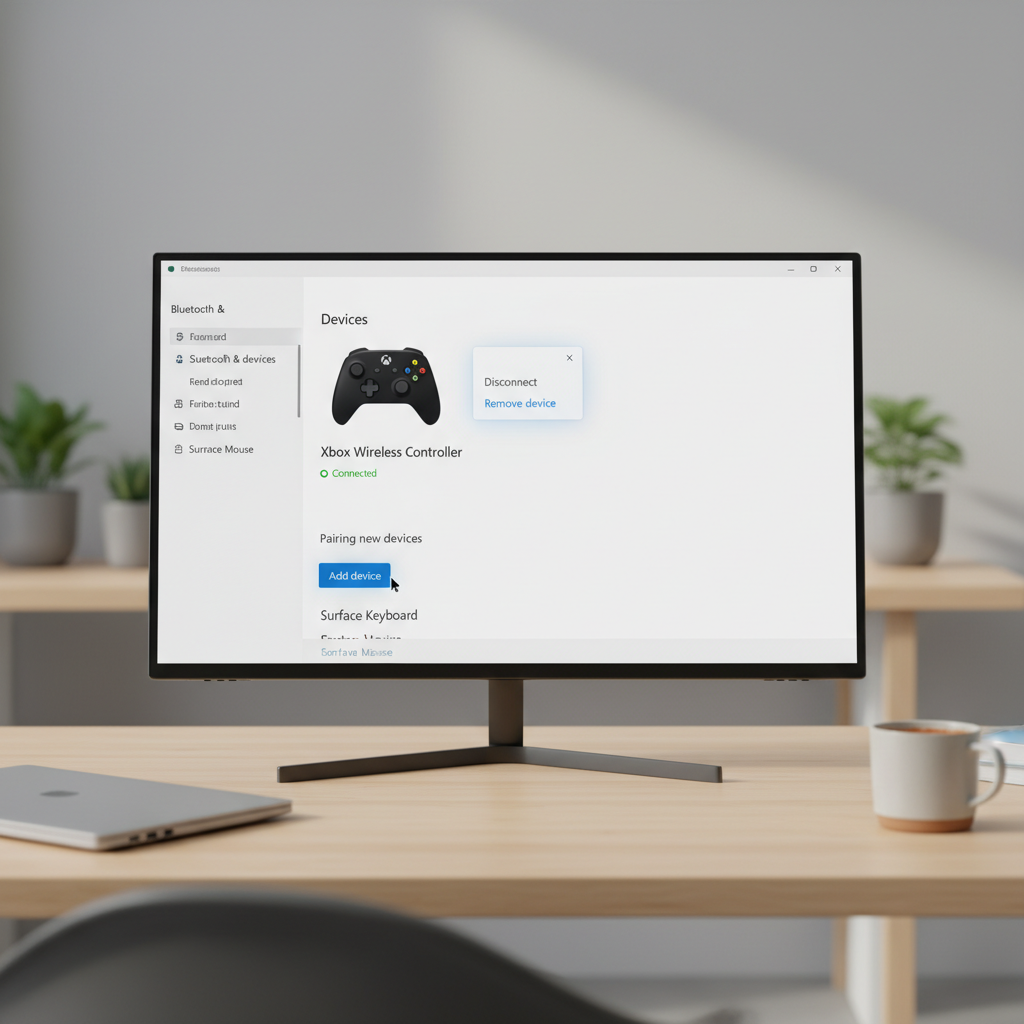
According to Microsoft Support, Windows device issues often improve after removing the device and reconnecting, which forces Windows to rebuild the connection profile and reload drivers. In practice, that’s exactly why re-pairing can beat “it says connected” situations.
Steam, Epic, and Xbox app: the “hidden layer” that can override inputs
If your controller works in the OS but not in a specific title, the launcher layer is frequently the culprit. This is where many people burn time because the controller is fine, the game is fine, the translation layer is not.
Steam Input: enable or disable, but do it on purpose
Steam Input can translate controllers into XInput, remap buttons, and apply community configs. That’s helpful for some games and harmful for others.
- In Steam Library, right-click the game > Properties > Controller.
- Try toggling between Use default settings, Enable Steam Input, and Disable Steam Input.
- If you see double inputs, disabling Steam Input is a common fix when the game already supports your controller natively.
According to Valve (Steam Support documentation), Steam Input is designed to provide controller compatibility and remapping, but it can also change how games receive controller signals. That’s why the same controller may behave differently across titles.
Epic Games Launcher and non-Steam games
- Some Epic titles behave better when launched through Steam as a “Non-Steam Game,” because Steam Input becomes the compatibility layer.
- If a game uses its own launcher, check for an in-launcher input toggle, not just the in-game menu.
Xbox app / Microsoft Store titles
For PC Game Pass games, controller support is often solid, but drivers and services still matter.
- Update the Xbox app and Gaming Services in Microsoft Store.
- Check for controller firmware updates using the Xbox Accessories app if you use an Xbox controller.
In-game settings that quietly block controller detection
This sounds too simple, but a lot of “game not recognizing controller” reports end here because the game is set to keyboard/mouse only, or you must enable controller support per profile.
- Look for Input Device or Control Scheme settings and switch to controller.
- Check for a “Enable Controller” toggle, especially in older PC ports.
- Unplug extra controllers and virtual devices (racing wheels, HOTAS, keypads). Too many devices can confuse device priority.
- If the game supports hot-swap poorly, connect the controller before launching and restart the game.
One more thing people miss: overlays and input tools. If you run DS4Windows, reWASD, or similar utilities, you can accidentally create a second virtual controller, and the game picks the wrong one.
Driver, firmware, and Windows settings (when quick fixes don’t work)
If you still need how to fix game not recognizing controller after the basics, this is the “system hygiene” section. It’s not glamorous, but it’s often where stubborn cases resolve.
Update controller firmware (especially Xbox and PlayStation controllers)
- Xbox: use the Xbox Accessories app on Windows to check firmware.
- PlayStation DualSense/DualShock: firmware updates may require official tools depending on model; follow Sony’s official guidance when available.
Update or reinstall device drivers
- Open Device Manager > find the controller under Human Interface Devices or Xbox Peripherals.
- Try Update driver. If things look corrupted, uninstall the device and reconnect so Windows reinstalls it.
- Update Bluetooth adapter drivers if wireless detection is the issue.
Disable USB power saving for testing
USB selective suspend can cause intermittent disconnects on some systems.
- Device Manager > USB Root Hub > Power Management, uncheck “Allow the computer to turn off this device to save power” (wording varies).
- Test again, then decide if you want to keep the change.
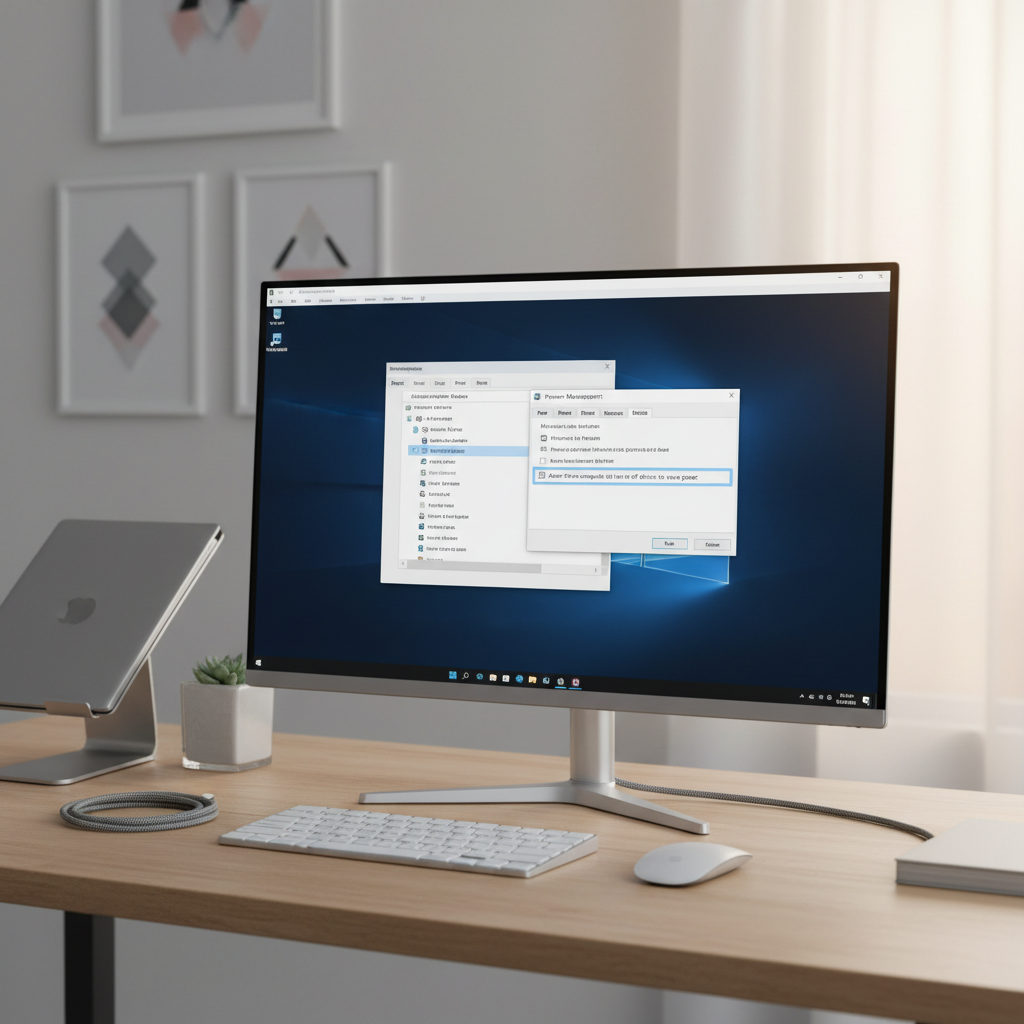
According to Microsoft Support, Device Manager is the primary place to manage drivers and troubleshoot hardware recognition issues on Windows, including updating, uninstalling, and re-detecting devices. When a controller refuses to show up in a game, fixing the driver layer can remove the bottleneck.
A practical step-by-step checklist (use this order)
If you want a clean routine you can repeat across games, this sequence usually keeps you from looping back and forth.
- Step 1: Test inputs in Windows “Game Controllers” panel. No input there means you focus on cable/Bluetooth/driver.
- Step 2: For wireless, Forget device and re-pair. For wired, swap cable and port.
- Step 3: Close background mapping tools (DS4Windows, reWASD) for one test run.
- Step 4: Launch the game with controller already connected, then check in-game input settings.
- Step 5: If on Steam, toggle Steam Input per-game and retest. Watch for double input.
- Step 6: Update firmware and drivers, then restart the PC (not just the game).
Key point: change one variable, test, then move on. When you flip five settings at once, you never learn what actually fixed the issue.
When to seek extra help (and what to bring with you)
If the controller fails across multiple games and doesn’t register properly at the OS level, you may be looking at a hardware fault, a bad Bluetooth adapter, or a deeper Windows issue. In that situation, it’s reasonable to contact the controller manufacturer, your PC OEM, or a local repair shop.
- Bring the controller model, connection type (USB/Bluetooth), and whether it works on another device.
- Note the game, platform (Steam/Epic/Game Pass), and what Windows shows in Device Manager.
- If you suspect physical damage or battery swelling, stop using the device and consult a professional service provider.
Conclusion: get the controller recognized, then lock in a stable setup
Most fixes for how to fix game not recognizing controller come from narrowing the problem to one layer: connection, driver, launcher mapping, or the game’s own settings. Once you find the layer, the solution is usually straightforward and repeatable.
If you do only two things today, make them these: test the controller in Windows first, then adjust Steam Input (or disable other mapping tools) based on whether the game already supports controllers natively.
Key takeaways
- OS test first: if Windows can’t see inputs, the game won’t either.
- Steam Input is powerful, and it can also cause double input if misconfigured.
- Re-pairing Bluetooth and using a real data cable solve a lot of “connected but not detected” cases.
- Firmware and drivers matter more than most people want to admit.
FAQ
- Why does my controller work in Steam Big Picture but not in the game?
That usually means Steam sees the controller, but the game either has controller support disabled in its settings or it’s receiving a different input format than it expects. Try the game’s controller toggle first, then change Steam Input per-game. - How do I fix a game not recognizing controller on PC when it’s connected via Bluetooth?
Forget the controller in Windows Bluetooth settings, pair again, and update Bluetooth adapter drivers. If it still fails, test via USB to confirm the controller itself works. - What is double input and how do I stop it?
Double input looks like menus moving two steps at once or buttons triggering twice. It often happens when both the game’s native controller support and Steam Input are active. Disabling Steam Input for that title is a common fix. - Should I use DS4Windows or similar tools?
They can help when a game lacks support, but they also add a virtual controller layer that can confuse some titles. If you’re troubleshooting, turn them off for one clean test, then add them back only if needed. - Why does my controller only work when plugged in?
Many cases come from Bluetooth pairing issues, low battery, or outdated Bluetooth drivers. Re-pairing and updating the adapter driver typically helps, but some PCs also have weak Bluetooth radios, so a dedicated adapter can be worth testing. - Do I need to restart the game after changing controller settings?
Often yes. Plenty of games only scan controllers at launch, so changing settings mid-session may not register until a restart. - How can I tell if the issue is the controller or the game?
Test the controller in Windows “Game Controllers” and in a second game. If it fails everywhere, it’s likely controller/driver/connection. If it fails only in one title, it’s likely that game’s settings or its launcher input layer.
If you’re still stuck after running the checklist, it can help to write down your exact controller model, how it connects, and where it fails (Windows vs launcher vs in-game). If you need a more hands-off path, sharing that info with a support tech or a knowledgeable PC repair shop usually speeds up the diagnosis.