
How to transfer ps5 games to ssd on a PS5 is mostly straightforward, but the details matter because “move,” “copy,” and “download again” behave differently depending on where the game lives and what storage you’re using.
If you’re staring at the “Not enough space” message, or you installed an M.2 SSD and expected everything to magically relocate, you’re not alone. A lot of people get stuck on two things: which storage you’re transferring from (console SSD vs USB extended storage) and which storage you’re transferring to (M.2 vs console vs USB).

This guide breaks it into quick checks and practical steps: how to move PS5 games to an internal M.2 SSD, when you should use USB extended storage, and what to do if a transfer fails or the PS5 refuses to recognize the drive.
Before you transfer: know what can go where
PS5 treats storage locations differently, and that’s why transfers sometimes feel inconsistent.
- Console Storage: the PS5’s built-in internal SSD, fastest and always compatible.
- M.2 SSD Storage: the internal expansion slot, also fast and runs PS5 games directly (when compatible and formatted).
- USB Extended Storage: external HDD/SSD via USB, good for storing games, but PS5 games typically must be moved back to internal (console or M.2) to play.
According to PlayStation Support, PS5 games can be stored on USB extended storage but need to be moved to console storage or an M.2 SSD to play. That single rule explains a lot of “why can’t I launch this?” moments.
Quick decision table: Move vs Copy vs Re-download
If you want the fastest, least annoying option, use this as your default reference. Transfers preserve the installed game files, but some add-ons or queued updates may still need a quick check after.
| Goal | Best action | Why it’s usually best |
|---|---|---|
| Free up console storage fast | Move games to M.2 SSD | M.2 runs PS5 games and keeps load times strong |
| Keep a backup copy on external drive | Copy PS4 games to USB extended storage | External storage works well for PS4 libraries |
| Play PS5 game stored on USB | Move it back to console or M.2 | PS5 titles usually won’t run from USB |
| Slow internet, big games | Transfer instead of re-download | Saves time and avoids data caps |
| Corrupted install or repeated errors | Delete + re-download | Sometimes cleaner than troubleshooting a bad install |
Self-check: are you ready to move games to an M.2 SSD?
Before you start the transfer, confirm these basics. It prevents the classic “why is M.2 missing?” problem.
- M.2 SSD shows up in Settings: Settings → Storage → M.2 SSD Storage.
- M.2 SSD already formatted by the PS5: PS5 formats it the first time it’s installed.
- You have enough free space on the target drive: the PS5 will block moves that won’t fit.
- Your PS5 system software is updated: storage features and stability improvements can be tied to updates.
- Transfer plan matches the game type: PS5 games to M.2/console, PS4 games can go to USB if you want.
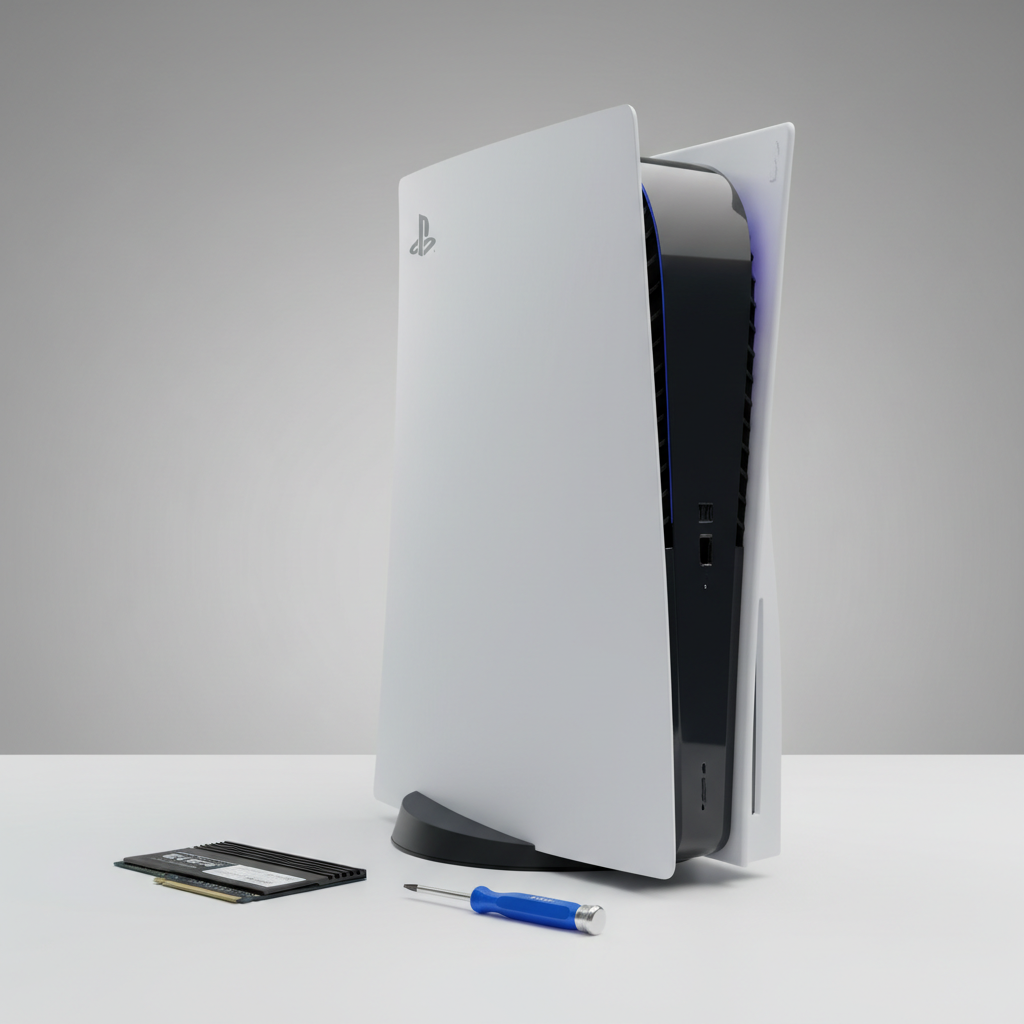
If any of these fail, jump ahead to the troubleshooting section, it’s usually a formatting, compatibility, or “wrong storage location” issue rather than something catastrophic.
How to transfer PS5 games to an M.2 SSD (step-by-step)
This is the core workflow most people want when searching how to transfer ps5 games to ssd: moving installed titles from console storage to the internal M.2 drive.
Method 1: Move individual games
- Go to Settings → Storage → Console Storage → Games and Apps
- Select the games you want to move
- Choose Move
- Select M.2 SSD Storage as the destination
- Confirm the move and wait for completion
Real-world tip: if you’re moving a huge title plus DLC, it’s safer to move fewer items at once, especially if you’ve had past crashes or power issues in your area.
Method 2: Set M.2 as the default install location
If you installed an M.2 SSD mainly to stop playing storage whack-a-mole, set it as default so new installs land there.
- Settings → Storage → Installation Location
- Set PS5 Games and Apps to M.2 SSD Storage
- Optionally set PS4 Games and Apps based on your plan (M.2 vs USB)
This doesn’t move existing games, it just prevents the same problem next month.
Common scenarios (and the cleanest way to handle each)
Transfers go smoothly when the scenario is clear. When it isn’t, you waste time doing “moves” that don’t solve the real constraint.
You upgraded storage because PS5 internal filled up
- Do: move your largest PS5 titles to M.2 first
- Then: set M.2 as default install location
- Avoid: copying PS5 games to USB expecting to play them there
You keep a big PS4 backlog
- Do: store PS4 games on USB extended storage if you want cheap capacity
- Do: keep PS5 games on console/M.2 for play
- Nice bonus: PS4 titles often run fine from external SSD, but your mileage varies by drive
You’re trying to move a game but the “Move” option is missing
- Check if you’re already looking at M.2 storage, not console storage
- Confirm the game isn’t a streamed/cloud-only item
- Look for queued downloads or updates that might lock files
Troubleshooting: when transfer fails or M.2 doesn’t appear
If the PS5 errors out mid-transfer, don’t immediately assume the SSD is dead. Most failures come from formatting, heat, or a messy install state.
M.2 SSD not recognized
- Power down fully and reseat the M.2 drive (not Rest Mode)
- Confirm the SSD meets PS5 requirements
- Make sure the PS5 prompts you to format it, if it never does, something is off
According to PlayStation Support, the PS5 requires a compatible NVMe M.2 SSD and the system will guide formatting and speed testing after installation. If you never see that flow, treat it as a compatibility or install issue first.
Transfer stuck or painfully slow
- Pause other downloads and updates
- Move fewer games per batch
- Restart the PS5 and retry the move
Game launches but behaves oddly after moving
- Check for missing add-ons: Settings → Storage → manage game content
- Verify the game is fully updated
- If crashes persist, delete and re-download to the target drive
Key tips to avoid wasted transfers (the stuff people learn late)
- Keep some free space on whichever drive you play from, patches and shader/cache behavior can need headroom.
- Don’t treat USB like an M.2 replacement for PS5 titles, it’s more like a parking lot.
- Use “Move” to free space, use “Copy” only when you truly want duplicates (mostly PS4 workflows).
- Watch heat management: many M.2 drives run hot, a heatsink is commonly recommended; if you’re unsure, check the SSD maker guidance.

If you’re routinely juggling space, a simple habit helps: whenever you finish a big single-player game, move it off the primary play drive instead of deleting it immediately, you can keep it “warm” for DLC without eating console space.
Wrap-up: the simplest plan that works for most people
For most setups, the winning combo is: keep PS5 games on console storage or M.2, keep PS4 games wherever capacity is cheapest, and use transfers as your default instead of re-downloading. Once you understand the storage rules, how to transfer ps5 games to ssd stops feeling like a guessing game.
If you want one action to take today, set your M.2 as the default install location, then move your top three largest PS5 titles off console storage so you get breathing room right away.
FAQ
Can I play PS5 games directly from a USB external SSD?
In many cases, no. You can usually store PS5 games on USB extended storage, but you’ll need to move them back to console storage or M.2 SSD storage to play.
Is “Move” better than “Copy” for transferring games?
If your goal is freeing space, yes, because “Move” relocates the install and reclaims storage on the source drive. “Copy” makes sense when you want two installs, which is more common with PS4 libraries.
Will transferring games delete my saves?
Normally, game saves are managed separately from game install data. Still, it’s smart to confirm cloud saves or backups if you’re worried, especially before troubleshooting steps like deleting and reinstalling.
Why does my PS5 say there isn’t enough space when I just installed a new M.2?
Usually it’s because the transfer is targeting the wrong storage location, or the M.2 isn’t formatted/recognized yet. Check Settings → Storage and verify the destination shows usable free space.
Do I need a heatsink for an M.2 SSD in PS5?
Often, it’s recommended because NVMe drives can run hot in sustained use. If your SSD doesn’t include one, check the manufacturer guidance and PS5 installation recommendations.
What’s faster: transferring a game or downloading it again?
It depends on your internet speed and the game size. Many households find local transfers more predictable than re-downloading, especially with large AAA installs and patches.
If a transfer fails, what should I try first?
Pause downloads, restart the console, and try moving fewer titles at once. If the same game repeatedly fails, deleting that install and downloading fresh to the target drive is often the cleaner fix.
If you’re trying to save time, keep a tidy storage routine: set the M.2 as default, move finished games instead of deleting them on impulse, and only use USB extended storage as a library shelf for what you’re not actively playing.