
how to boost internet for gaming usually comes down to one thing: making your connection more consistent, not just “faster.” A huge download speed number can still feel awful in a match if your ping jumps, packets drop, or Wi‑Fi gets crowded.
If you play on a shared home network, the problems stack up quickly—someone starts a 4K stream, your router overheats, your console roams to a weak Wi‑Fi band, and suddenly you’re rubber-banding at the worst time. The good news is most fixes are simple, and you can verify each change in minutes.
Below is a practical, gamer-focused checklist: quick wins first, deeper troubleshooting later, and a few upgrades only when they actually move the needle.
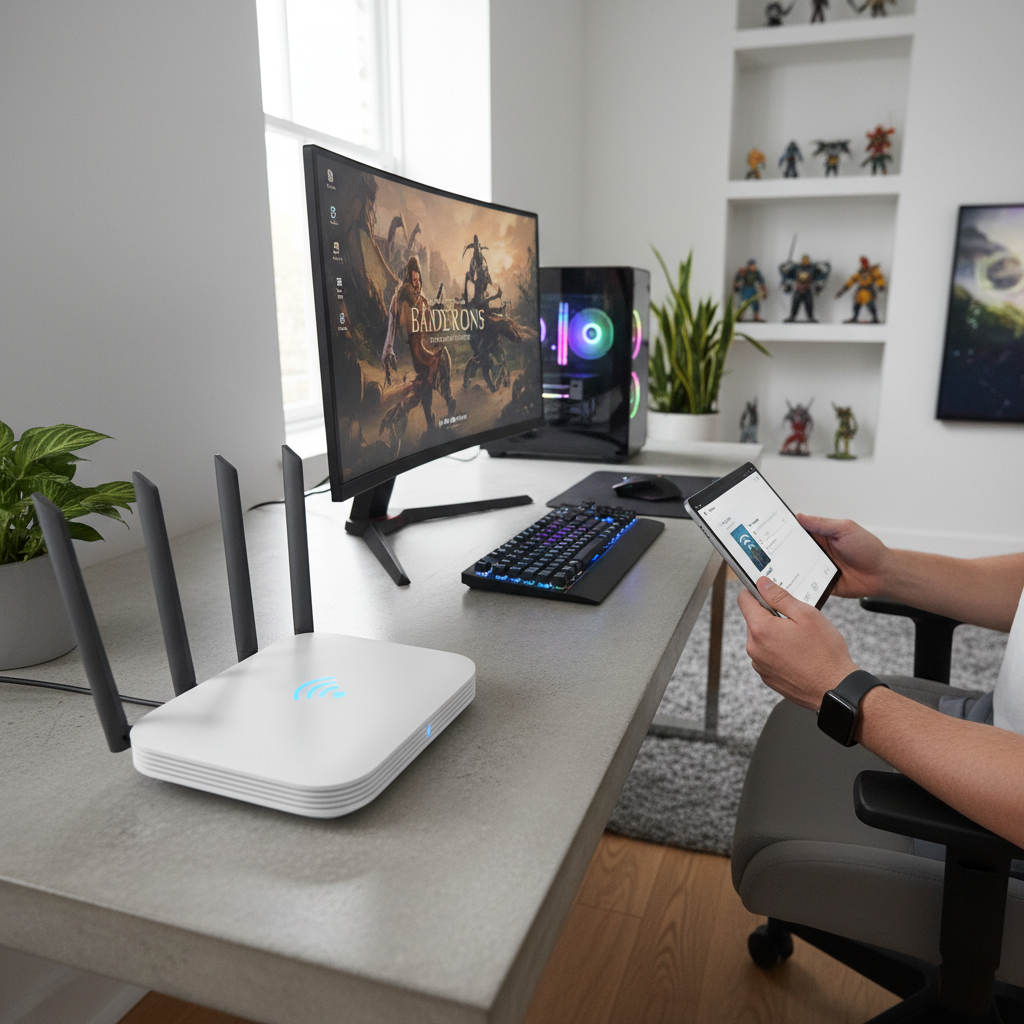
What “better internet for gaming” actually means
Before tweaking settings, it helps to aim at the right targets. Gaming cares more about stability than raw throughput, especially for shooters and competitive play.
- Latency (ping): how long it takes data to travel to the game server and back. Lower usually feels snappier.
- Jitter: how much your latency varies moment to moment. High jitter creates stutter, even if average ping looks fine.
- Packet loss: missing data along the route. This causes rubber-banding, hit-reg weirdness, and disconnects.
- Upload stability: voice chat and game state updates rely on upload too, not just download.
According to the Federal Communications Commission (FCC), “broadband” is commonly discussed in terms of speed, but real-world performance can vary based on Wi‑Fi quality, congestion, and network management. For gaming, that variability is often the real enemy.
Fast self-check: figure out what’s causing your lag
When people search how to boost internet for gaming, they often start changing everything at once. Try this quick triage instead so you don’t chase the wrong problem.
One-minute symptoms guide
- Only lag at peak hours (evenings): likely neighborhood congestion or overloaded ISP routing.
- Lag when someone streams or downloads: classic bufferbloat or bandwidth competition.
- Wi‑Fi shows full bars but games lag: interference, roaming, or you’re stuck on 2.4 GHz.
- Every device struggles: modem/router issue, ISP outage, or bad line signal.
- Only one device struggles: device Wi‑Fi adapter, drivers, console settings, or bad Ethernet cable.
Do these two tests (simple, but telling)
- Test A: Ethernet vs Wi‑Fi. Plug in directly for one session. If the problem mostly disappears, your bottleneck is Wi‑Fi, not your ISP plan.
- Test B: “busy home” vs “quiet home”. Try playing once when no one else is using the network. If it improves a lot, you need traffic control (QoS) more than more megabits.
Quick wins you can do today (no new gear)
These changes are low effort and tend to produce noticeable improvements in ping stability. Do them in this order so you can tell what helped.
- Restart modem + router the right way: unplug both, wait 60 seconds, plug modem in first, then router after the modem is fully online.
- Update router firmware: stability fixes are common, and some updates improve Wi‑Fi performance.
- Move the router: get it off the floor, away from TVs/microwaves, and closer to your gaming device. Line of sight often matters more than people want to admit.
- Switch to 5 GHz or 6 GHz: 5 GHz usually reduces interference; 6 GHz (Wi‑Fi 6E/7) can be even cleaner if your device supports it.
- Pick a better Wi‑Fi channel: in crowded apartments, “Auto” can choose badly. A Wi‑Fi analyzer app can help you spot the least congested channels.
- Pause background traffic: cloud backups, OS updates, camera uploads, and game launchers can quietly saturate upload.
Small note: if you only change one setting, make it “use 5 GHz/6 GHz” and keep the device close to the router for a test match. It’s the fastest way to confirm whether Wi‑Fi is the villain.

Router settings that usually matter for gaming (and what to avoid)
Your router can either smooth out traffic or amplify chaos. The tricky part is that “gaming” settings vary by brand, and some toggles are more marketing than help.
Settings worth checking
- QoS / Smart Queue / SQM: this is the big one for busy households. It helps prevent one device from flooding the connection and spiking latency.
- Device prioritization: prioritize your PC/console and voice chat device. Useful when QoS is implemented well.
- UPnP: often helps NAT type and matchmaking for consoles. If you disable it for security reasons, set up manual port forwarding carefully.
- WMM (Wi‑Fi Multimedia): usually should stay enabled; it helps traffic handling on Wi‑Fi networks.
Settings that can backfire
- “Gaming VPN” mode by default: it can improve routing for some server paths, but it can also add latency. Test before committing.
- Over-aggressive bandwidth caps: setting upload/download limits too low can throttle you. If using SQM, set limits slightly under your real speeds.
- DMZ for your console: sometimes used as a quick NAT fix, but it increases exposure. Prefer UPnP or targeted port forwards.
According to the Cybersecurity and Infrastructure Security Agency (CISA), keeping network devices updated and using safe configuration practices reduces risk. If you open ports, do it intentionally and document what you changed so you can undo it later.
Wired vs Wi‑Fi: the decision table (use what fits your space)
If your goal is how to boost internet for gaming with the least drama, Ethernet is still the most consistent option. When wiring is hard, there are “good enough” alternatives.
| Option | Best for | Tradeoffs |
|---|---|---|
| Ethernet | Lowest ping, lowest jitter, competitive play | Needs a cable run, may be inconvenient |
| MoCA (coax adapters) | Homes with coax ports, strong stability | Requires compatible coax wiring and adapters |
| Powerline | Quick setup when coax isn’t available | Performance varies a lot by electrical wiring quality |
| Mesh Wi‑Fi | Coverage problems, larger homes | Wireless backhaul can add latency; wired backhaul works better |
If you can’t run Ethernet, MoCA is often the closest “wired-like” experience in many US homes. Powerline can be fine, but it’s the most unpredictable option in older buildings.
ISP and plan tweaks that can help (without overpaying)
Sometimes the fix is not another “faster plan,” it’s making sure your line and modem are healthy, and your plan matches your household.
- Check your modem compatibility: some older modems struggle under load or don’t match your plan tier well.
- Look at upload speed: cable plans may have limited upload, and that can hurt when the house is busy.
- Ask about line signal quality: if you see frequent drops, an ISP tech can check signal levels and connectors.
- Try a different DNS: it won’t lower in-game ping directly, but it can speed up server lookups and reduce odd connection delays.
According to the FCC, consumers can compare options and performance expectations using their broadband resources and provider disclosures. In practice, if your issue is peak-time congestion, switching tiers may not fix it unless it changes how your traffic is handled.
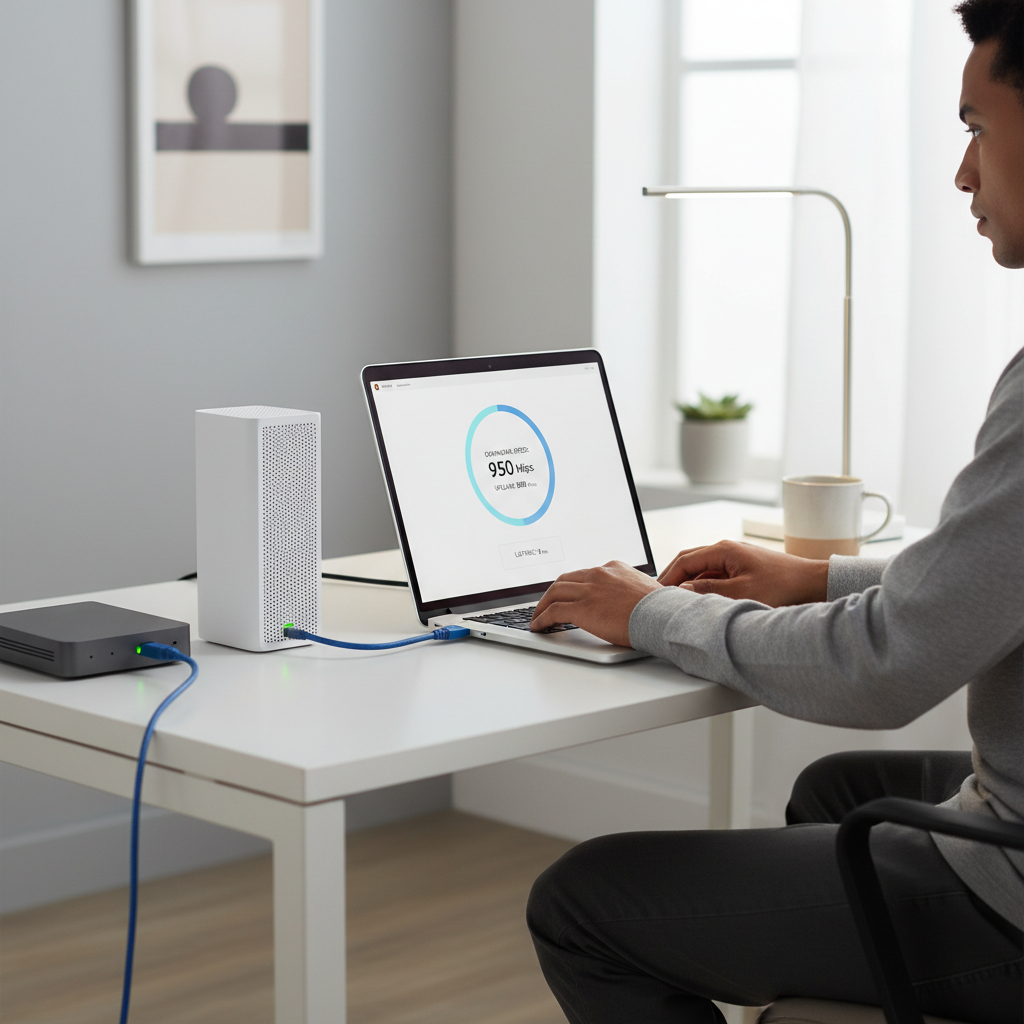
Step-by-step: a practical “gaming connection tune-up”
If you want a repeatable process, this is the sequence that tends to waste the least time. You can stop as soon as your matches feel stable.
Step 1: Lock in a clean connection
- Test one gaming session on Ethernet.
- If Ethernet fixes it, focus on Wi‑Fi improvements or a wired alternative like MoCA.
Step 2: Reduce latency spikes at home
- Enable QoS/SQM (if your router supports it) and set bandwidth limits slightly below your measured speeds.
- Prioritize your gaming device.
- Retest while someone else streams video to see if ping stays steady.
Step 3: Optimize Wi‑Fi (if you must stay wireless)
- Split SSIDs for 2.4 GHz and 5/6 GHz so your device doesn’t “wander.”
- Move the router to a more central, elevated spot.
- Use 5 GHz/6 GHz for gaming, keep 2.4 GHz for smart-home devices.
Step 4: Confirm it’s not the game server path
- Try a different server region if the game allows it.
- Play one match in another title. If only one game lags, your home network might be fine.
Common mistakes that waste time
- Buying a higher download plan to fix ping: sometimes helps if your line was saturated, but often the real issue is queueing, not bandwidth.
- Stacking “boosters”: extender chains and random “signal amplifiers” can add hops and instability.
- Ignoring upload: a single device saturating upload can wreck gaming for everyone.
- Changing ten settings at once: you lose the ability to learn what actually worked.
If you’re trying how to boost internet for gaming and keep hitting the same wall, slow down and isolate one variable per test. It feels boring, but it’s what gets you to a real fix.
When it makes sense to get professional help
If you’ve tested Ethernet, enabled QoS, and you still see frequent disconnects or obvious packet loss, it’s usually time to involve your ISP or a local network tech.
- Call your ISP if your modem logs show frequent drops, your signal levels look off, or the issue affects all devices.
- Consider a networking pro if you need Ethernet runs, a structured panel cleanup, or a reliable mesh with wired backhaul.
- Be cautious with security: if you’re unsure about UPnP, port forwarding, or DMZ settings, ask for help rather than guessing.
According to the National Institute of Standards and Technology (NIST), basic cybersecurity hygiene includes minimizing unnecessary exposure and keeping systems updated. That advice applies at home too, especially when you start opening ports for games.
Key takeaways
- Stability beats speed: lower jitter and packet loss often matter more than another 200 Mbps.
- Ethernet is the fastest fix for most households, even as a temporary test.
- QoS/SQM helps shared networks by preventing latency spikes during downloads and streams.
- Wi‑Fi band choice matters: 5 GHz/6 GHz usually performs better for gaming than 2.4 GHz.
Conclusion: what to do next
If you want the simplest path, do one Ethernet test, then decide whether you’re solving a Wi‑Fi problem or an ISP problem. After that, turn on QoS/SQM and keep your gaming device on 5 GHz or 6 GHz, those three moves cover a surprising percentage of “random lag” cases.
Pick one change tonight, run two matches, and write down what improved. That small bit of discipline is often what turns a frustrating connection into something you can trust.
FAQ
How to boost internet for gaming without upgrading my plan?
Start by reducing latency spikes: use Ethernet (or test it), enable QoS/SQM, and move your device to 5 GHz/6 GHz Wi‑Fi. Many homes already have enough bandwidth, they just don’t manage traffic well when the network gets busy.
What internet speed do I actually need for online gaming?
Most games don’t need huge download speeds, but they do need a steady connection. If your household streams, downloads, or works from home while you play, extra headroom helps, yet stability and low jitter still matter more than peak Mbps.
Will a gaming router lower my ping?
It can, but not automatically. A better router helps most when it has strong QoS/SQM and better Wi‑Fi radios. If your ping is high because the game server is far away, new hardware won’t magically fix distance.
Is Wi‑Fi 6 or Wi‑Fi 7 worth it for gaming?
In many cases, yes for crowded environments, because newer standards handle multiple devices more efficiently. You’ll see the most benefit if both your router and your gaming device support the newer Wi‑Fi features.
Does changing DNS help gaming?
DNS mainly affects how fast you find services, not your in-match ping. It can help with slow logins or store pages, but if your issue is rubber-banding, focus on packet loss, Wi‑Fi interference, and bufferbloat.
Why do I lag only at night?
That pattern often points to congestion outside your home, either in the neighborhood or along the ISP route to the game servers. You can still optimize your home network, but if the issue is consistently time-based, collecting a few speed and latency tests helps when you contact your provider.
What’s the safest way to get an “Open NAT” on console?
UPnP is commonly used and convenient, but security preferences vary. If you avoid UPnP, careful port forwarding can work, though it’s easier to misconfigure; if you’re unsure, getting guidance from your ISP or a qualified technician is usually the safer move.
If you’re trying how to boost internet for gaming and you want a more hands-off setup, a modern router with solid QoS/SQM plus a wired option like Ethernet or MoCA can be a practical combo, especially in busy households where one stream can ruin everyone’s match.