how to mod games safely on pc usually comes down to one idea: mod what the game allows, keep your files clean, and never mix “fun mods” with competitive or anti-cheat environments.
A lot of bans don’t happen because someone installed a texture pack, they happen because mods get loaded in the wrong mode, the wrong server, or with the wrong tools. And once an anti-cheat flags you, arguing your intentions rarely helps.
This guide focuses on practical, low-drama habits: how to pick safer mods, how to install them with less risk, how to separate modded and unmodded play, and how to spot the situations where “just try it” is the fastest path to a ban.
What “safe modding” actually means (and what it does not)
Safe modding is about reducing avoidable risk, not chasing a guarantee. Many studios treat any modification in online play as a violation, even if the mod feels harmless.
Think in three buckets:
- Single-player / offline mods: usually lower ban risk, but you can still break saves or trigger integrity checks on some launchers.
- Approved mod ecosystems: Steam Workshop, in-game mod browsers, curated consoles of “verified” mods, often the safest route.
- Online competitive / ranked: the riskiest place for anything that changes files, memory, overlays, or automation.
According to Valve (Steam Support and VAC documentation), VAC bans are tied to cheating detection on secured servers, and they’re not typically removed because a user “didn’t mean it.” Treat that as your baseline reality: the system cares about what ran, not why.
Why bans happen when people “only used mods”
In real life, most ban stories follow a few predictable patterns. If you recognize one of these, you can usually fix your process quickly.
Mods loaded in online modes
People test a new mod in a private lobby, then forget to disable it before joining a public server or queue. Some games load the same config across modes unless you separate profiles.
Memory injection and trainers
Anything that manipulates memory at runtime, trainers, cheat tables, some overlay tools, can look like cheating because technically it is the same technique. Even in single-player, launching those tools while the anti-cheat service runs can create risk.
“Cosmetic-only” isn’t always cosmetic
A reshade preset or UI tweak might still hook into rendering pipelines, add DLLs, or change files the game verifies. Anti-cheat doesn’t always interpret your intent as “visual only.”
Sketchy downloads and bundled installers
Some mod sites wrap downloads in adware installers. That can introduce suspicious processes, which is a messy overlap with anti-cheat and account security.
Quick self-check: is your mod setup likely to get you banned?
If you want a fast reality check, walk through this list. If you hit “yes” on any high-risk item, change your approach before you launch the game.
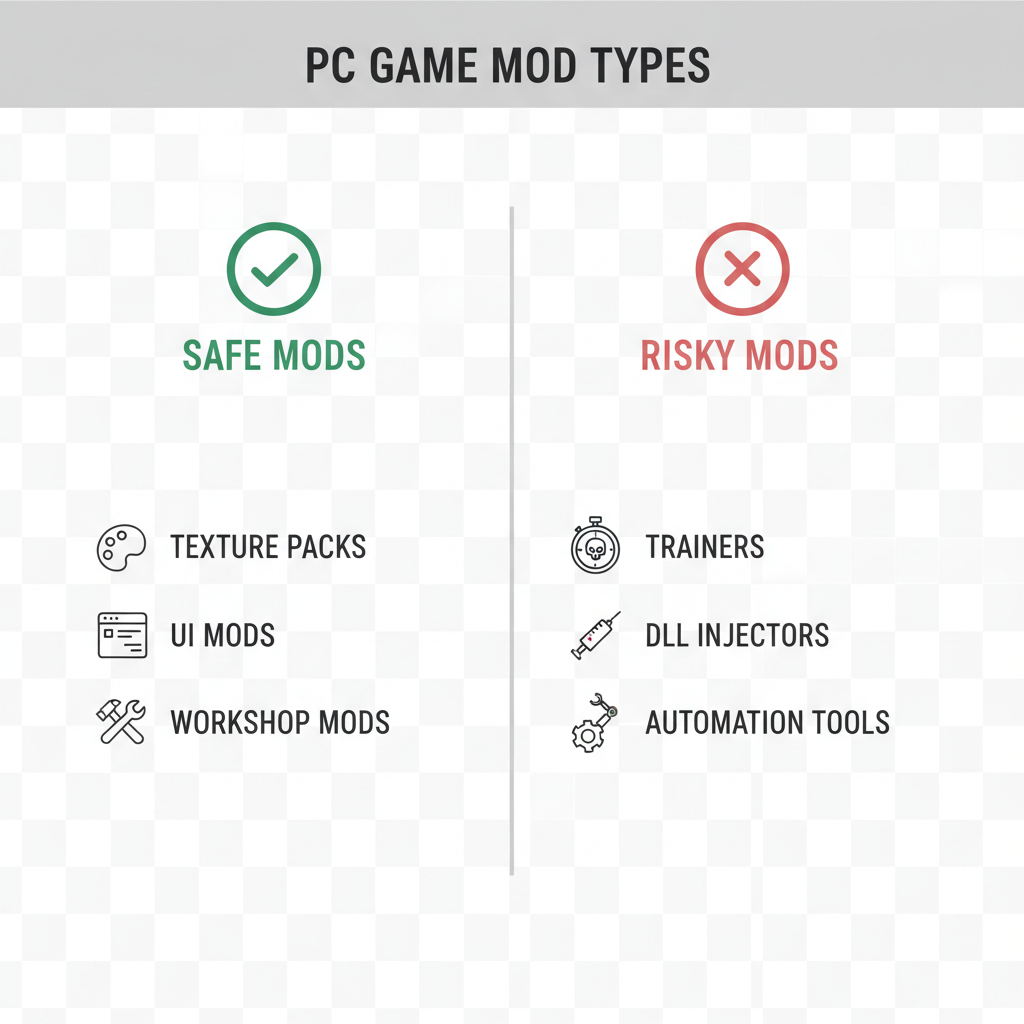
- High risk: You play ranked/competitive multiplayer and the mod changes DLLs, injects code, or edits executable-related files.
- High risk: The mod description mentions “undetected,” “bypass,” “unlock,” “aim,” “ESP,” “macro,” or “automation.”
- Medium risk: You must disable anti-cheat to make the mod work, even if the mod feels harmless.
- Medium risk: The mod requires a third-party launcher that runs alongside the game and hooks overlays.
- Lower risk: The game officially supports modding via Workshop or an in-game mod menu, and you stay in allowed modes.
- Lower risk: You only mod single-player, and you keep a clean, separate install for online play.
If you’re learning how to mod games safely on pc, this checklist matters more than any single “best mod manager” recommendation.
A safer workflow: step-by-step modding without inviting a ban
This is the workflow that tends to reduce mistakes, because it forces you to separate “experimenting” from “playing online.” Keep it boring on purpose.
1) Read the game’s rules before you read the mod page
Start with the official stance: EULA, community guidelines, anti-cheat FAQ, and the server rules if you play on community servers. According to Epic Games (Easy Anti-Cheat documentation), EAC is designed to prevent cheating in multiplayer and developers decide what is allowed in their titles, so the same tool can mean different rules across games.
2) Prefer official mod channels when they exist
Workshop mods, curated mod portals, or “verified” collections tend to be safer because the game expects that ecosystem. It doesn’t make them magic, it just reduces unknowns.
3) Use a mod manager with profiles (and name them clearly)
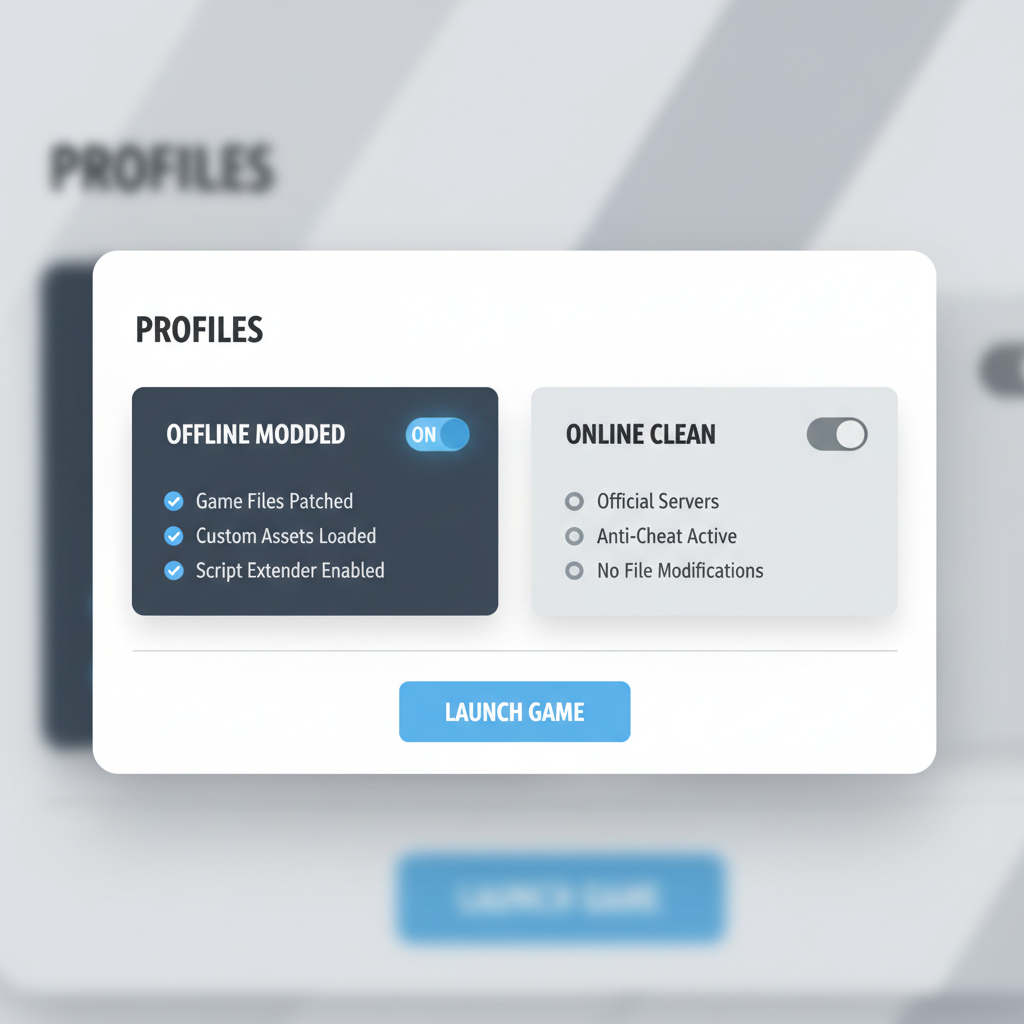
Profiles let you maintain a clean “vanilla online” setup and a separate “modded offline” setup. Name them like you mean it: ONLINE CLEAN and OFFLINE MODDED. That little friction prevents most slip-ups.
4) Back up saves and config before you change anything
This is less about bans and more about sanity. Mods can corrupt saves, change ini files, or break load orders. A simple backup folder avoids the “I panicked and verified files mid-crash” spiral.
5) Install slowly, test in small batches
Add 1–3 mods, launch, confirm stability, then continue. When people install 40 mods at once, they can’t tell what caused the crash, and they start doing random fixes that create more risk.
6) Keep anti-cheat and online play clean
Before you join any multiplayer environment, switch to the clean profile, remove mod loaders, and verify files if the platform supports it. For some games, a separate installation folder for modded play is the cleanest approach.
If your goal is how to mod games safely on pc without ban drama, this “two environments” habit is the closest thing to a cheat code.
Common mod types and typical ban risk (practical table)
This table won’t replace a game’s rules, but it helps you think like an anti-cheat system: what looks like file tampering or automation.
| Mod type | Where it’s usually safest | Ban risk (typical) | Notes |
|---|---|---|---|
| Texture/skin replacements | Single-player, offline | Low to medium | Can still trigger integrity checks in some titles, avoid online unless explicitly allowed |
| UI/HUD tweaks | Single-player, mod-approved servers | Medium | May hook overlays or modify files the game verifies |
| Workshop/official mod portal mods | Supported game modes | Lower | Still follow server rules, some servers disable specific mods |
| Gameplay overhauls | Single-player, dedicated modded servers | Medium to high | Great offline, risky online unless the server is built for it |
| Trainers, cheat tables, automation macros | Offline only (if at all) | High | Often violates TOS, can be detected even if you “only used it once” |
| DLL injectors / bypass tools | Nowhere in online play | Very high | Common cheating technique, avoid if you care about your account |
Practical anti-ban habits that matter more than “good mods”
People focus on which mod is safe, but the bigger win is how you operate day to day.
- Separate shortcuts: one shortcut launches the vanilla executable, another launches your mod loader, so you don’t “accidentally” mod.
- Close background tools: overlays, debuggers, memory editors, RGB utilities that hook aggressively, keep the environment simple when playing online.
- Don’t hot-swap files: changing game files while the launcher is open can confuse file checks and invite weird flags.
- Watch mod update notes: a mod that was fine last month may add features that increase detection risk.
- Use reputable sources: avoid reuploads, “mod packs” from random links, and anything that forces a bundled installer.
According to the U.S. Federal Trade Commission (FTC) consumer guidance on malware and scams, downloading software from untrusted sources increases the chance of bundled unwanted programs. That’s not “modding advice,” but it’s relevant because a compromised PC creates all kinds of account trouble.
Mistakes that waste time (and sometimes trigger bans anyway)
These are the “feels productive” moves that often make things worse.
- Disabling anti-cheat “just to test something” and then forgetting to re-enable it, or joining the wrong mode afterward.
- Assuming private matches are safe when the same anti-cheat and telemetry run in the background.
- Mixing modding with account sharing because it blurs responsibility if anything is flagged.
- Chasing bypass tips from comment sections, if you need bypass, that’s already the wrong direction.
When you’re trying to learn how to mod games safely on pc, the boring answer usually wins: play modded content where modding is expected, and keep your online environment clean.
When to stop and get help (official support or experienced modders)
If something feels off, pause. “One more quick fix” is how people stack mistakes.
- You received an anti-cheat warning, kick, or “integrity violation” message, stop launching with mods and read the game’s support docs.
- You’re unsure whether a server allows a specific mod, ask the server admins in writing, many communities have clear rules.
- Your mod requires disabling security features, installing drivers, or running scripts you don’t understand, it’s reasonable to walk away or ask a knowledgeable friend to review.
- Your account has value, rare items, long history, paid DLC, treat it like you would treat a work laptop, be conservative.
When in doubt, the safest move is usually official support channels or well-moderated community forums tied to the game. They’re not perfect, but they’re less likely to push risky “workarounds.”
Key takeaways + a simple next step
If you only remember two things, make them these: don’t mod where anti-cheat expects vanilla, and separate modded and unmodded play with profiles or separate installs.
Pick one game you want to mod, read its official modding stance, then set up an “ONLINE CLEAN” profile today. It’s small, but it prevents the most common ban story.
FAQ
How can I mod games safely on PC without getting banned in multiplayer?
In most cases, you don’t. Multiplayer rules vary by game, but competitive/ranked modes often prohibit file changes or runtime tools. If the game supports modded servers or custom lobbies with explicit permission, stay inside those boundaries.
Are Steam Workshop mods always safe?
They’re usually safer than random downloads because the ecosystem is expected, but “safe” still depends on the game mode and server rules. Some servers block certain Workshop items, and some games only allow mods in specific modes.
Can cosmetic mods get you banned?
Sometimes, yes. Even cosmetic changes can alter verified files or load DLLs. If the developer says “no mods online,” treat cosmetics the same as gameplay mods for online play.
Is ReShade safe to use?
It depends on the game and anti-cheat configuration. Some titles allow it, others flag any injection-style post-processing. Check official guidance for that specific game before enabling it in online modes.
What’s the safest way to separate modded and unmodded play?
A mod manager with profiles is the easiest, and for stricter games, a separate install folder can be even cleaner. The goal is to avoid accidentally loading modded files when you launch online.
If I get banned, can I appeal by saying I used mods for single-player?
You can try, but outcomes vary and many systems are strict. Your best leverage is preventing the situation: keep modding offline, document what you installed, and avoid tools that resemble cheating techniques.
Should I disable antivirus when installing mods?
Generally no. If a mod requires you to turn off security tools, that’s a red flag. Stick to reputable sources and scan downloads, and if you’re unsure, ask in a well-moderated community before running anything.
If you’re trying to figure out how to mod games safely on pc but you keep running into confusing rules, mod conflicts, or “integrity check” warnings, it may be easier to describe your game, platform, and whether you play online, then build a simple clean-vs-modded setup you can switch between without second-guessing.